Table of Contents
Objectives
What is this for? Setting up a new site on WP engine, uploading the pro theme and activating the license, and installing the Blue Flamingo plugin.
What is the ideal outcome? To have the new site set up and ready for the developers
What you need to know beforehand? Wordpress login details, client name and Themeco logins.
Why this is important? First step in building the new website
Where this is done? Wordpress
When is this done? Once wireframes have been approved
Who does it? Project Manager
1. Setting up a new site in Wordpress
1.1 Login to wordpress
First, navigate to my.wpengine.com and switch between blue Flamingo, Canada and the UK if needed with the switch account option in the top left.
1.2 Add a new site
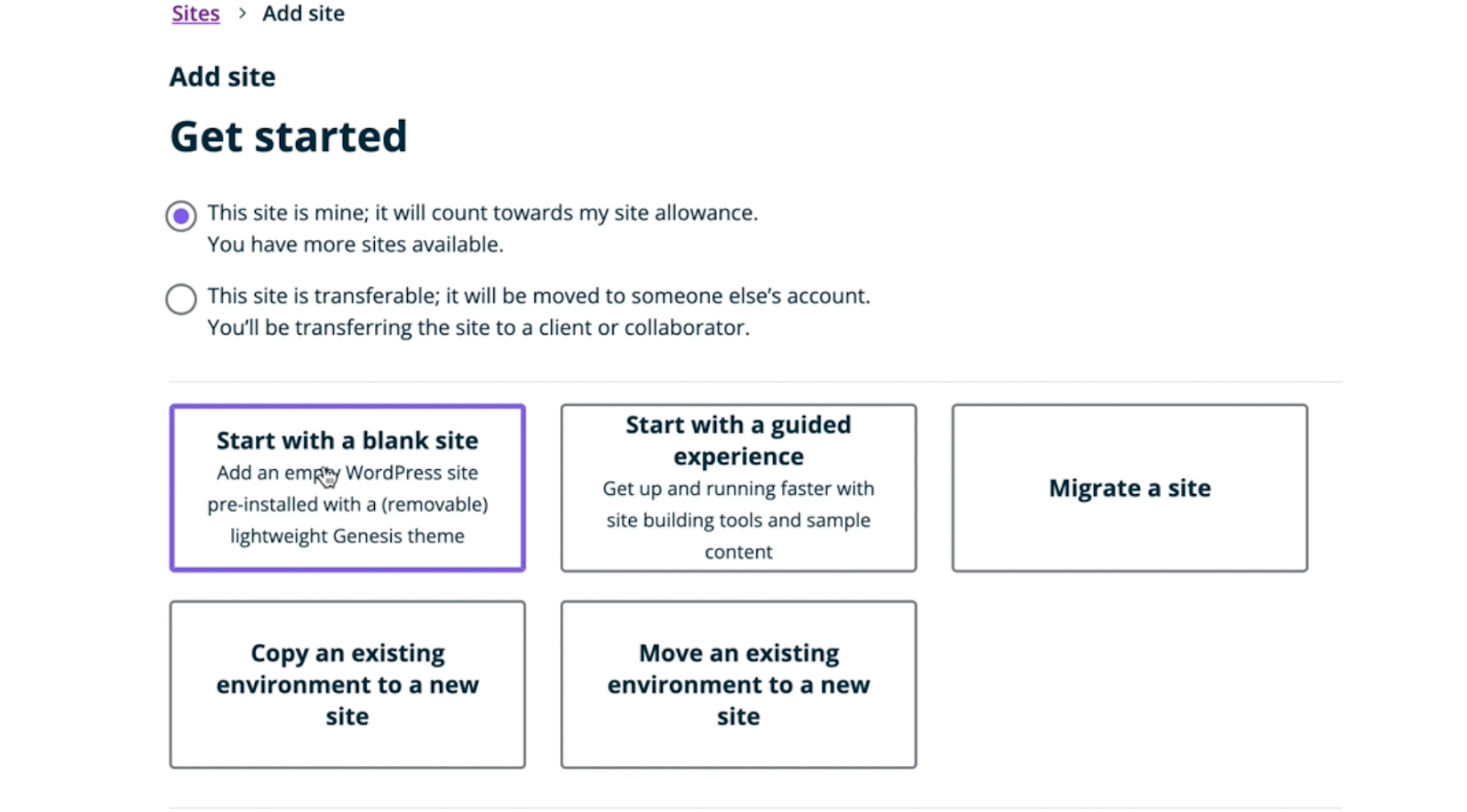
Click on ‘Add a site’ in the top right corner. Next choose ‘Blank site’ and make sure “This site is mine…” is selected.
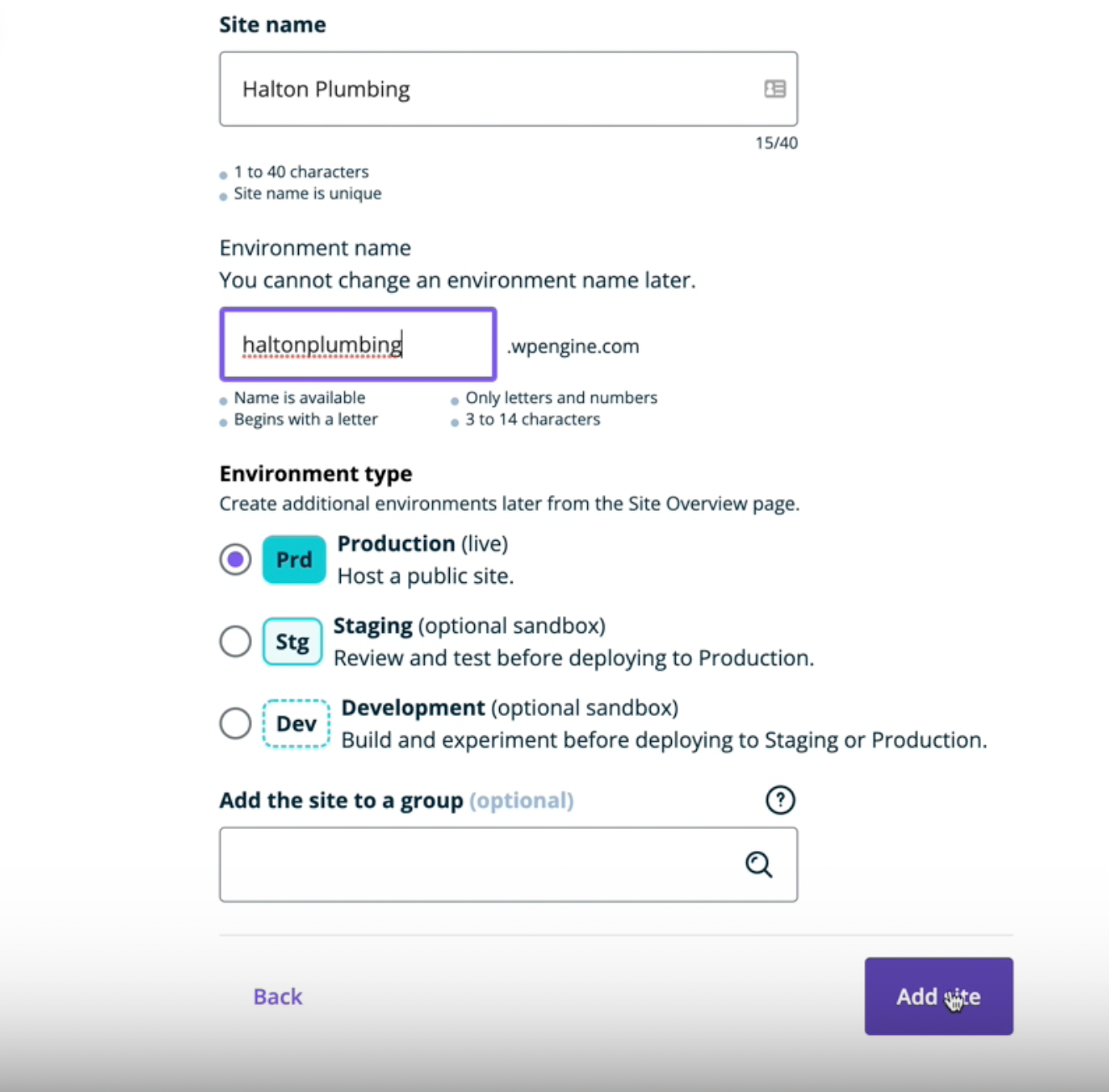
The next step is to enter a site name - this is a group of sites that include Production, staging and development. Here you can use anything from 1 to 40 characters.
Next you need to create the environment name (3 to 14 characters), for example Halton Plumbing. Then create the instance; you can have up to three instances within a sites (production, staging and development). Lastly, click ‘Add Site’ at the bottom.
This might take a few minutes and you will receive an email when the site has been created. If you then go to the dashboard and scroll down, you'll see the new site listed.
Now that the site is created you will need to update the themes and install the Blue Flamingo plugin.
1.3 Updating Themes
1.3.1 Downloading most up to date Theme
From the dashboard, click through to the new site and click on the WP admin to get direct access. Once logged in, we need to go and upload the theme.
Go to https://theme.co/ and login using the following passwords:
Username: mark@blueflamingo.co.uk
Password: London2012
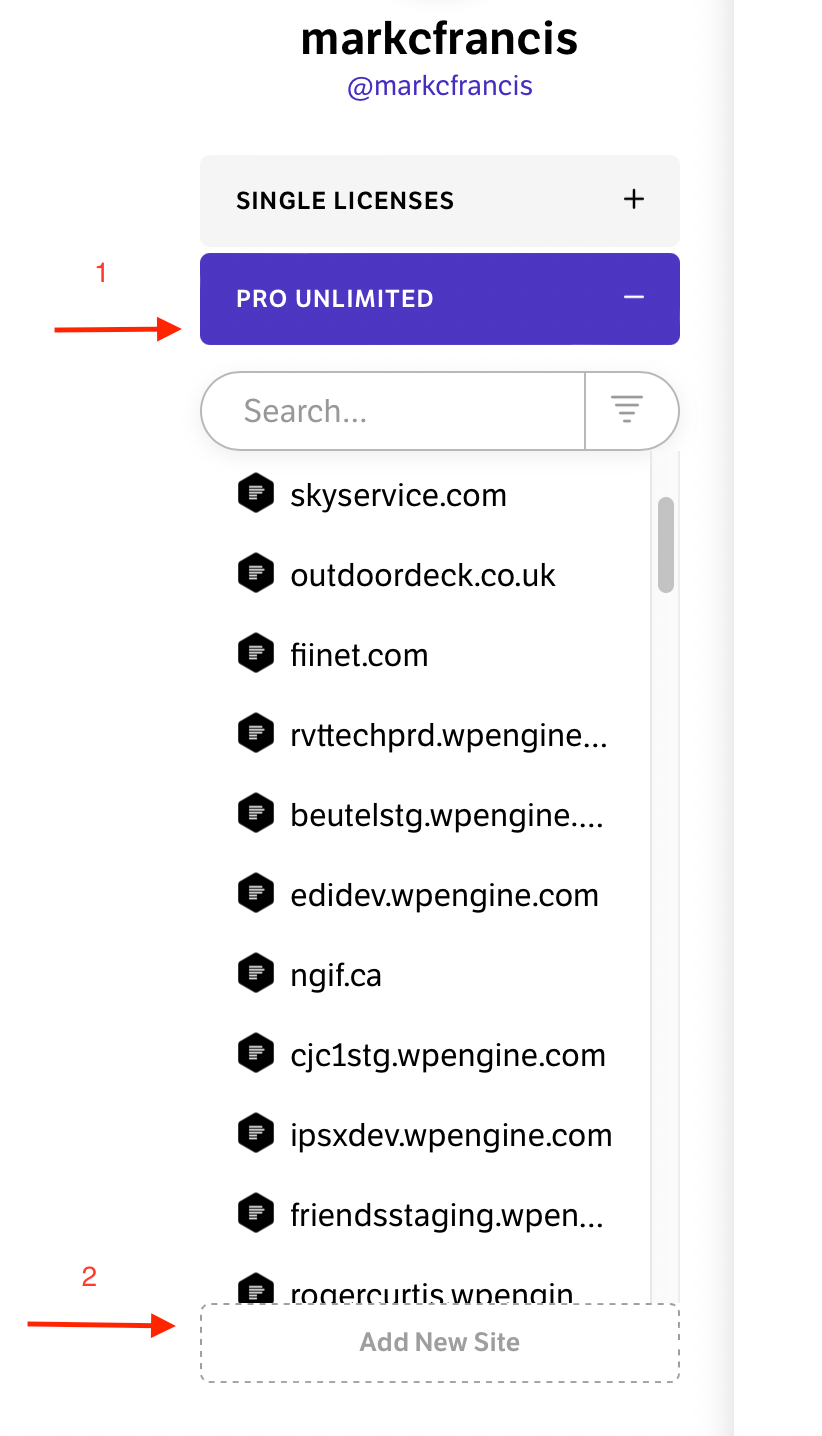
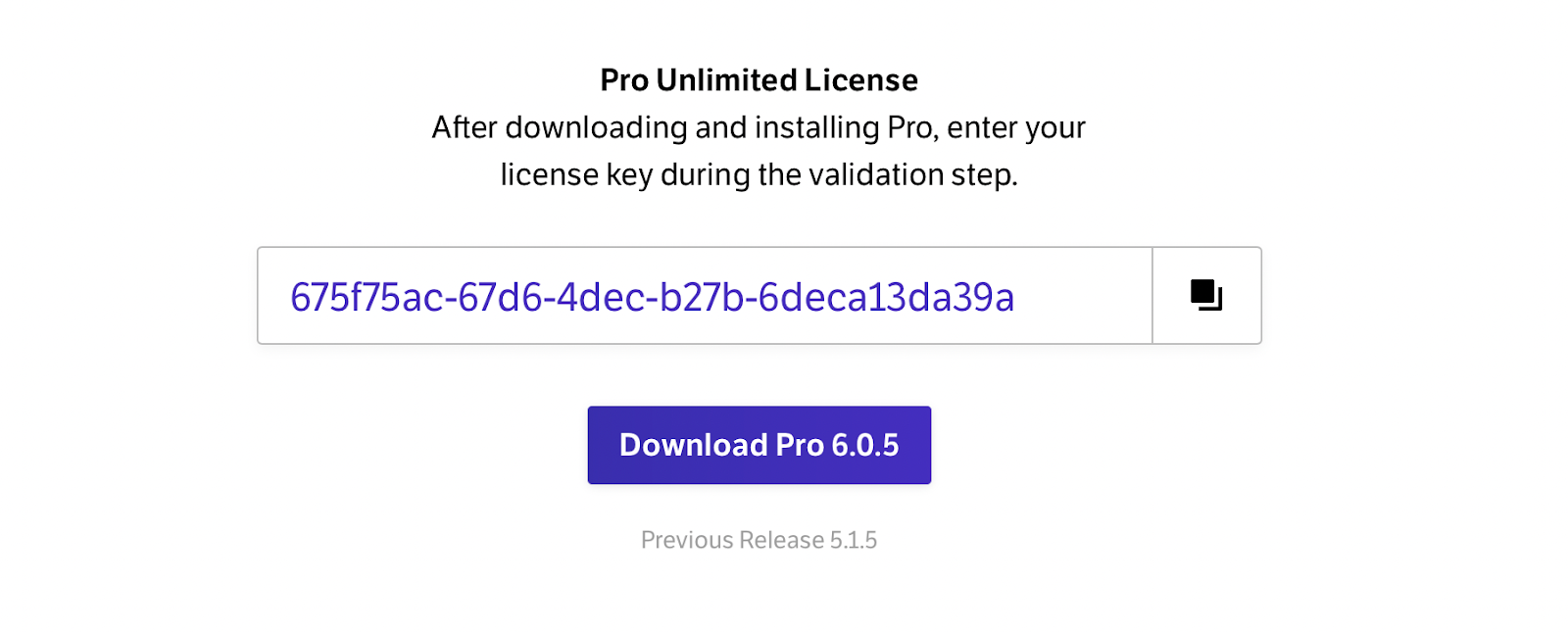
Click on the ‘Pro Unlimited and then click on ‘Add new site’. To the right you will see a license key populate. You will need to copy this for later and download the newest version.
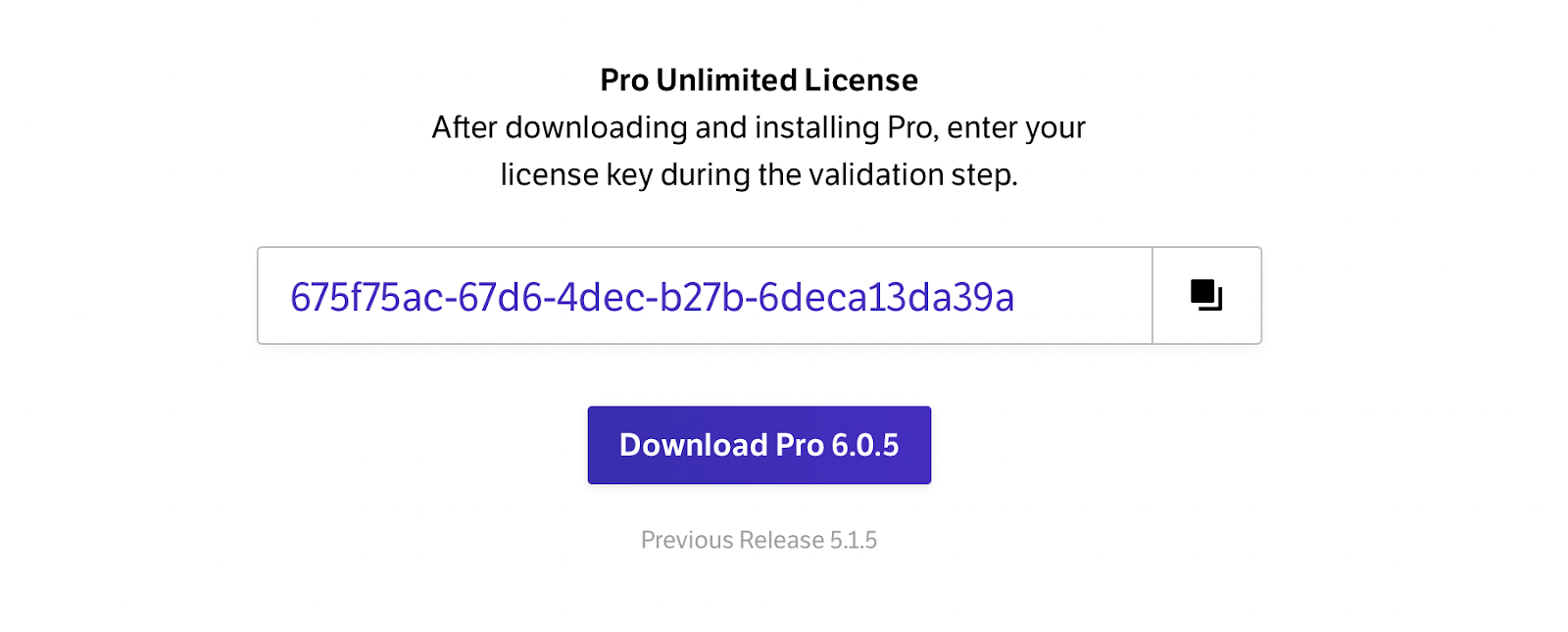
1.3.2 Updating Theme on instance in WP
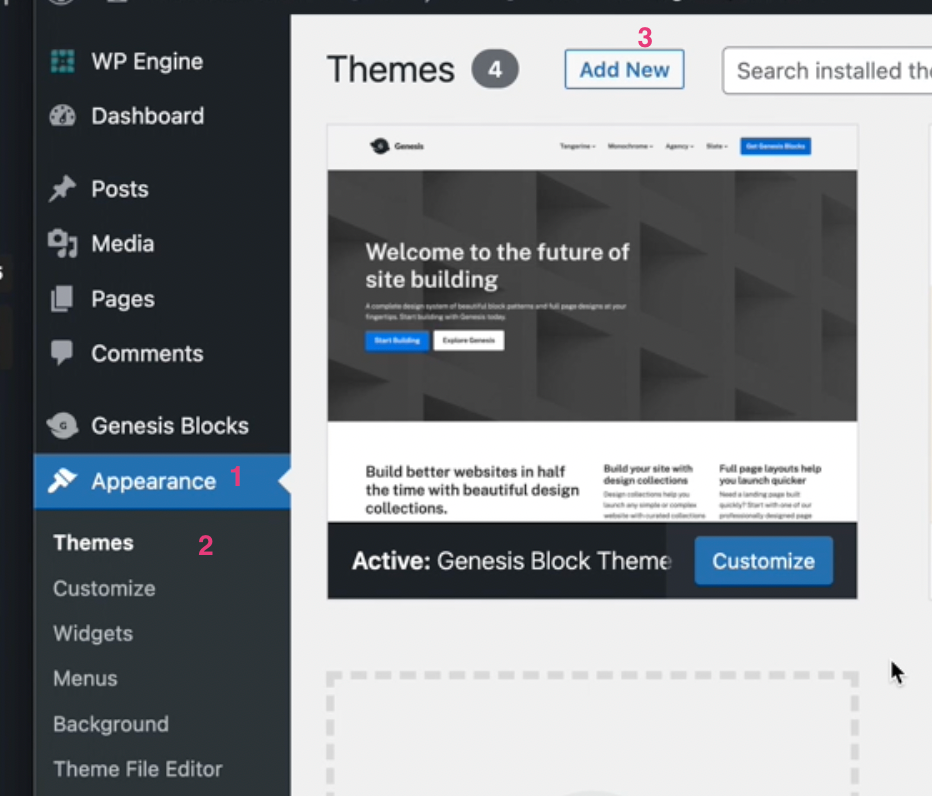
Go back to your instance in WP, go to Appearance in the menu then Themes. Click on Add new:
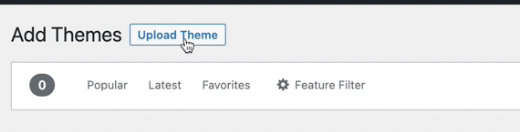
Click on Upload Theme at the top:
Choose the most recently downloaded version of Pro and make sure to Activate
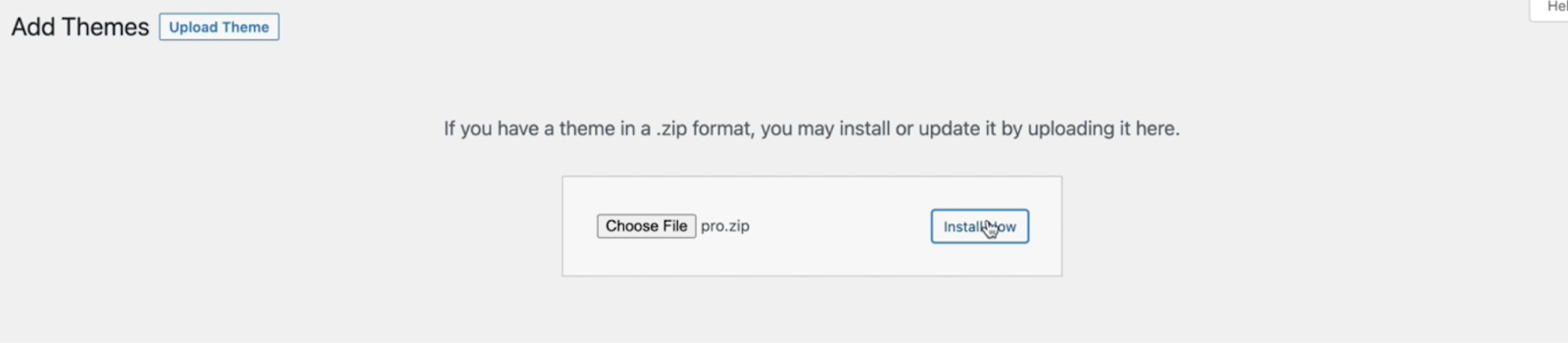

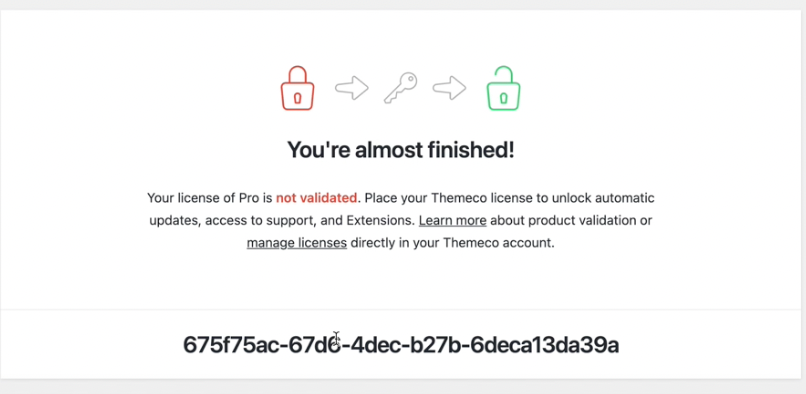
Enter the license code that we copied from Themeco
1.3.3 Updating Child Theme on instance in WP
Next we need to install the Child Theme for the site. Go to https://theme.co/docs/child-themes and download Pro Child Theme

Follow same instructions as in 1.3.2 for uploading a theme but no need to update License key this time.
1.4 Uploading Blue Flamingo Plugin
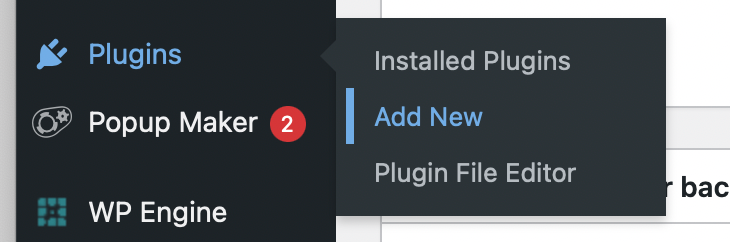
Go to Plugins, then Add New Plugin
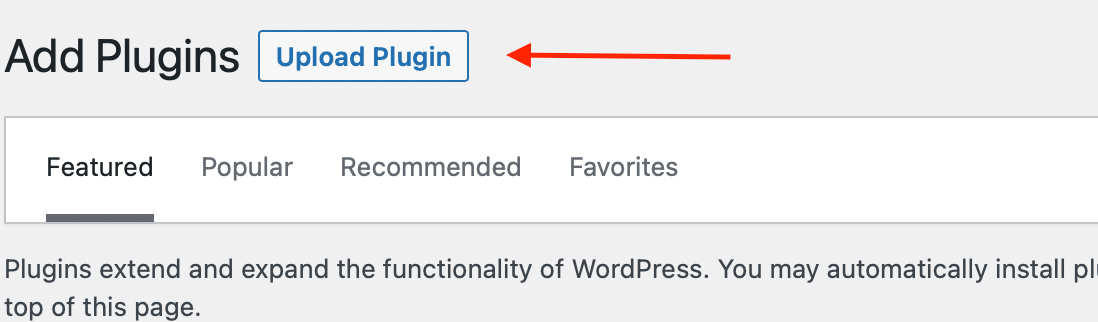
Next click Upload Plugin and choose the most up to date file of Blue Flamingo Plugin in your downloads folder.
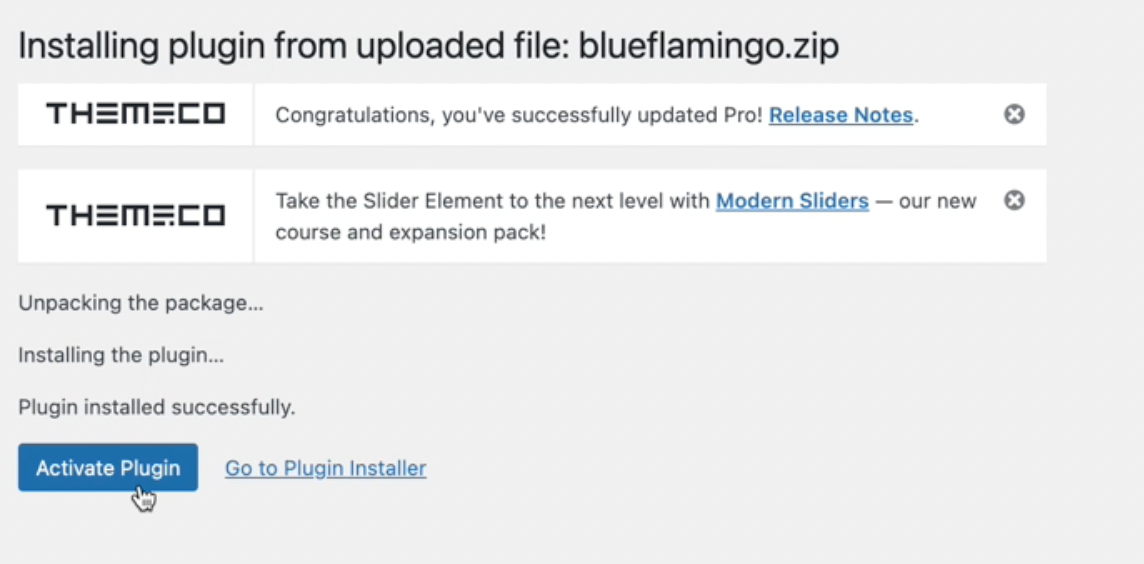
Click on Install Now and make sure to click on Activate Plugin,
Was this article helpful?
That’s Great!
Thank you for your feedback
Sorry! We couldn't be helpful
Thank you for your feedback
Feedback sent
We appreciate your effort and will try to fix the article