Table of Contents
- Objectives
- 1. New Website Kickoff To Do List
- 2. Set up a Teams folder
- 3. Welcome Email
- 4. Set up a new AA Campaign
- 5. Workshop
- 6. Next Steps
Objectives
What is this for? To put into place all the tools needed and gather as much information as possible for a successful project.
What is the ideal outcome? Client and Blue Flamingo understand each of their roles and expectations in creating a new website.
What you need to know beforehand? Get the proposal contract signed and receive deposit.
Why this is important? To welcome the new client and set up the project for success.
Where this is done? Clickup/Emails/Teams/Agency Analytics
When is this done? Once a proposal is signed by both client and Blue Flamingo and Deposit received.
Who does it? Project Manager
1. New Website Kickoff To Do List
1.1 Create Kickoff List in Clickup:
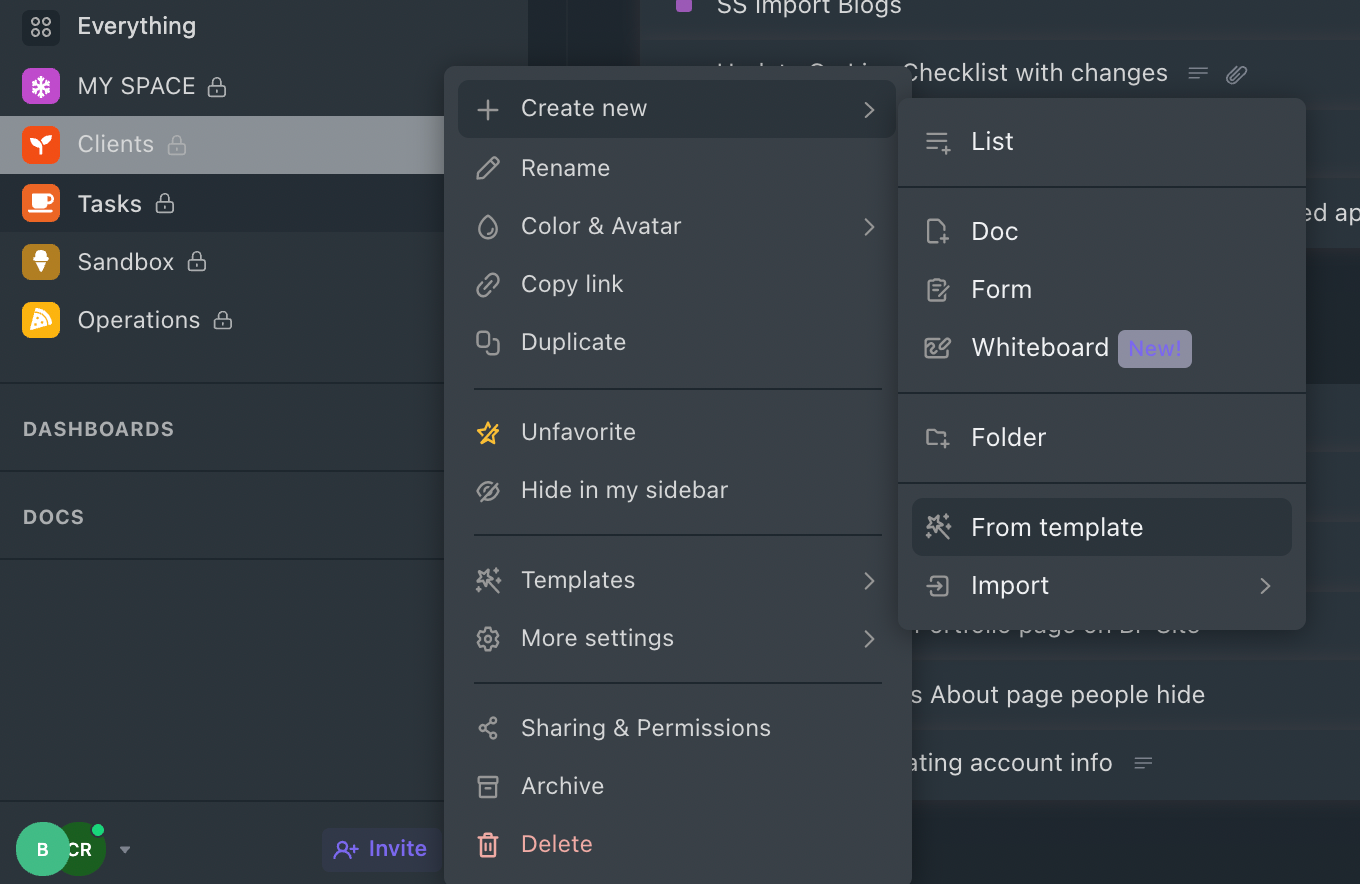
To create a new project board for the new client; click on the + sign beside the clients Folder in the Clickup menu on the left side. Then choose ‘Create new list’ and then ‘From template’.
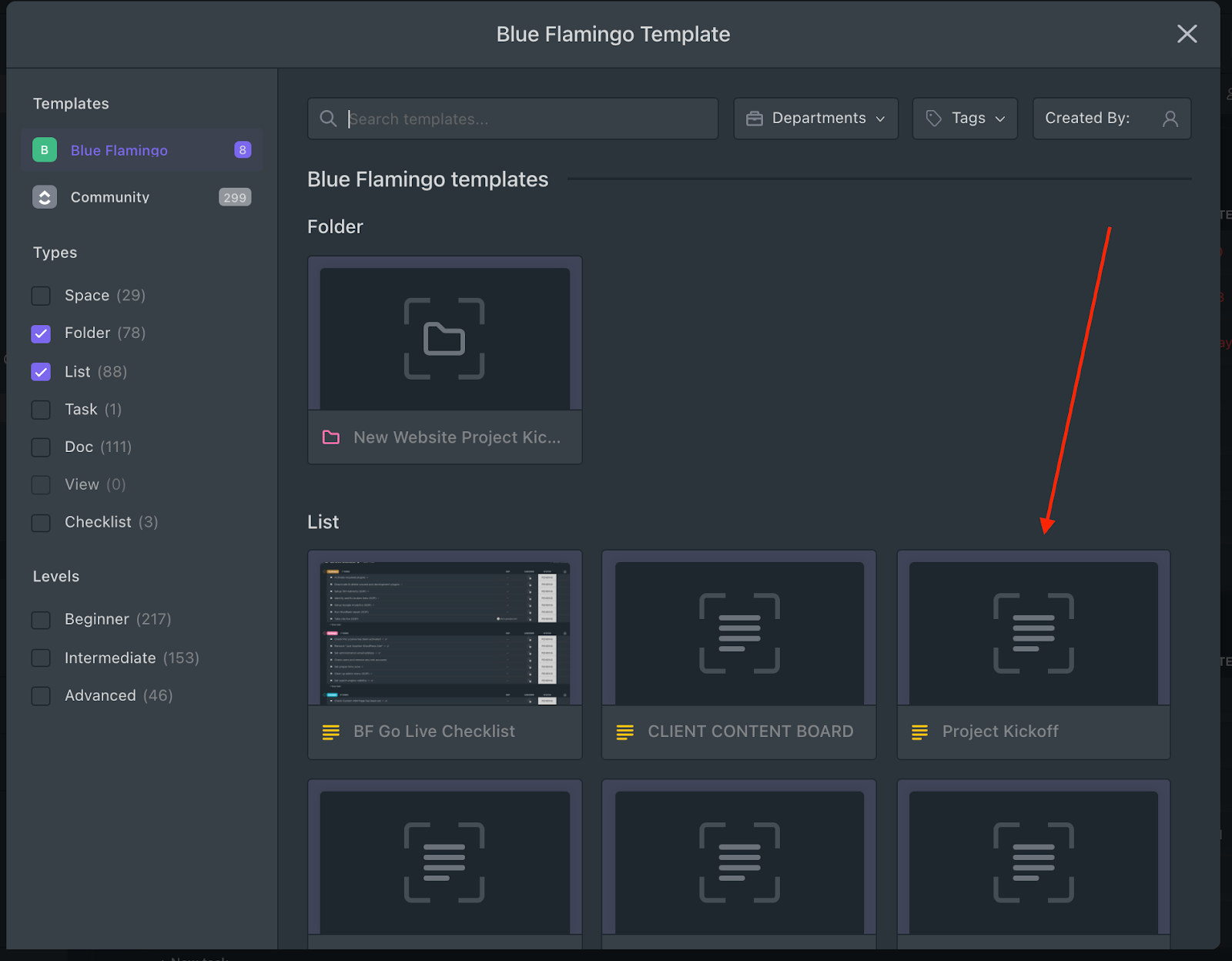
In Templates, choose Project Kickoff Template under the Blue Flamingo Templates.
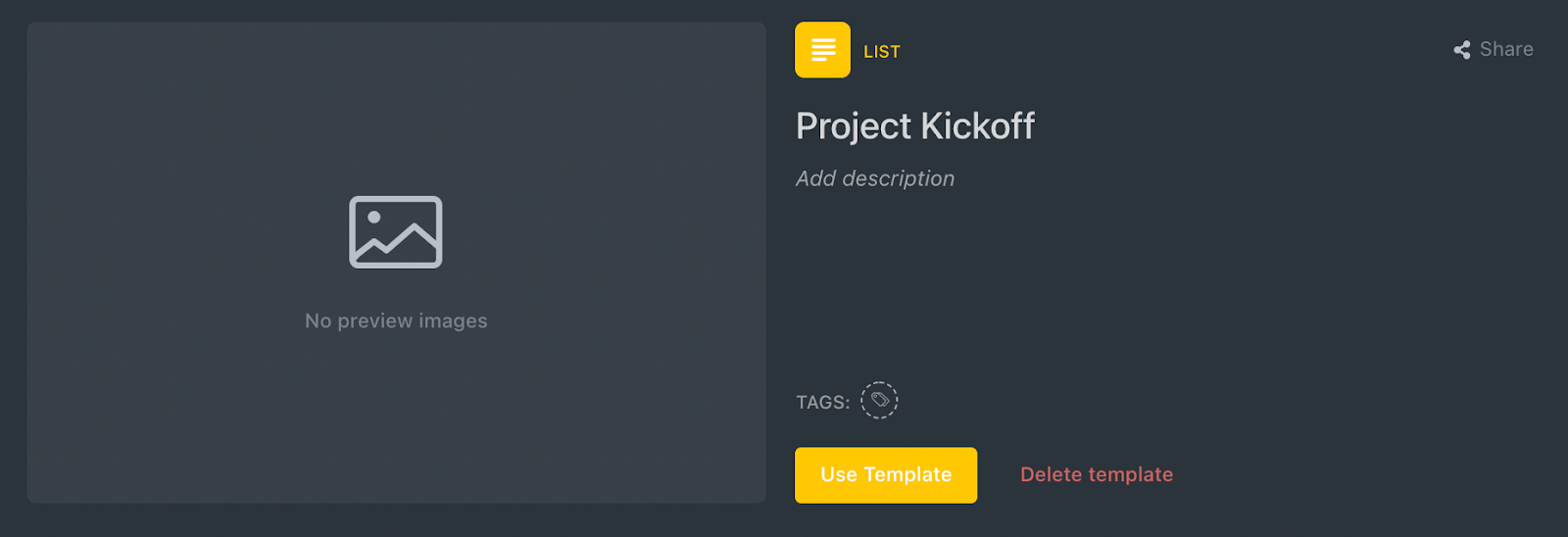
Click on the Use Template button
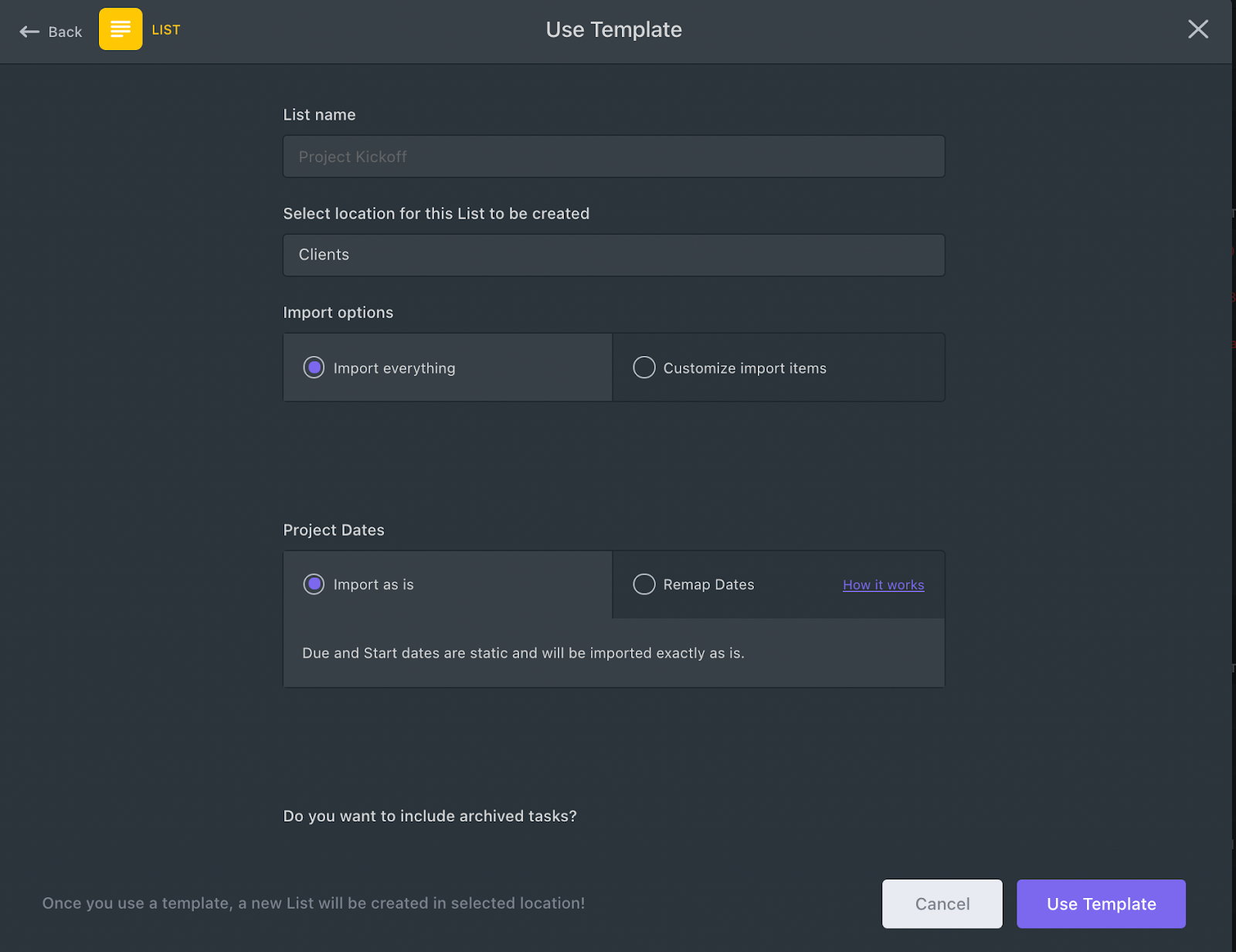
Now create your new client board by filling in the List name (which will be the new client’s name followed by Kickoff ie Blue Flamingo Kickoff ) and make sure the Location is “Clients”. Now click on “use template”. Your new projects kickoff list will be created after a few minutes and appear under the Clients folder.
Once the folder has been created, open the list and update the tasks with assignees, start and due dates where needed.
2. Set up a Teams folder
2.1 Set up a Teams folder for uploading assets
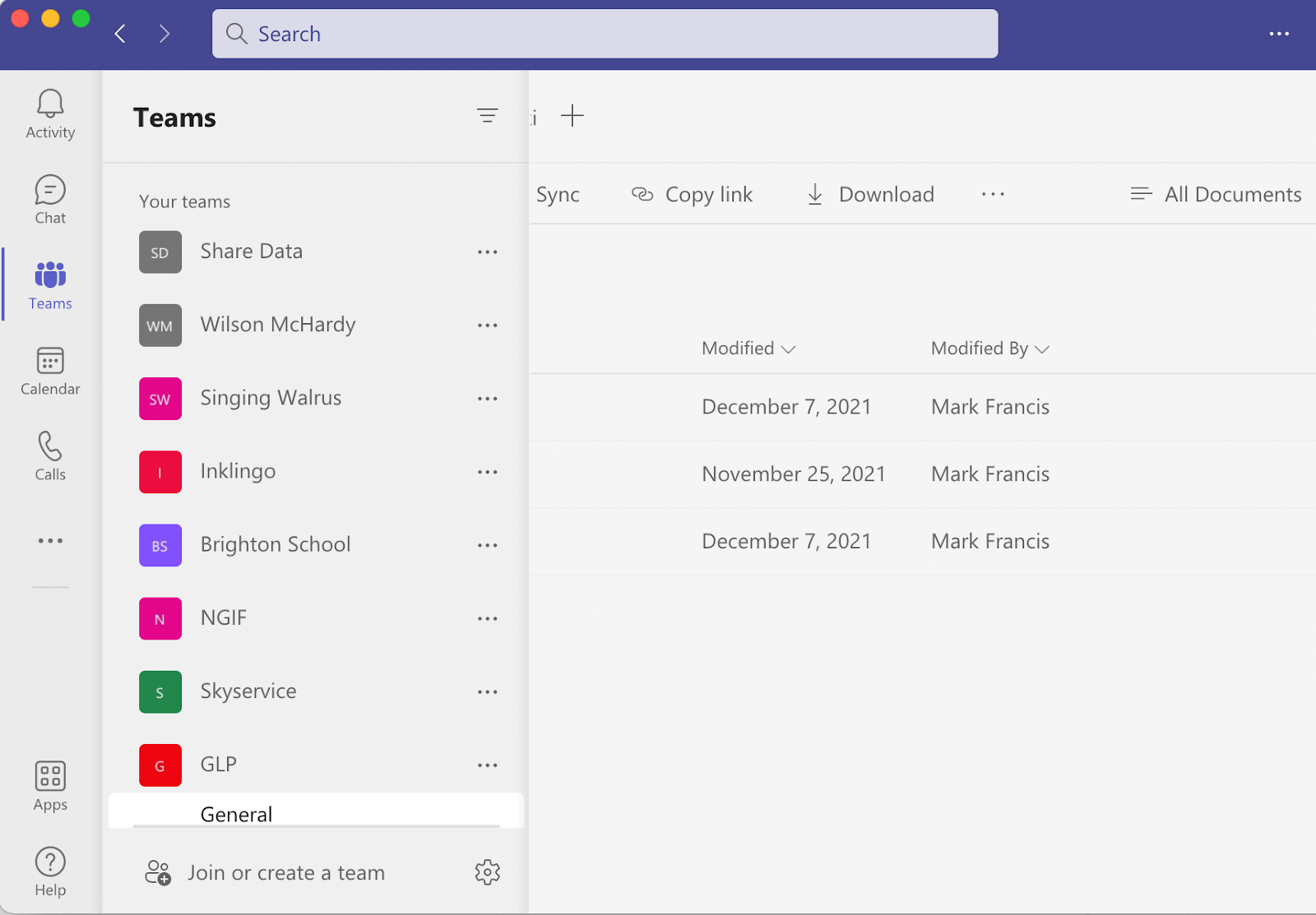
Sign in to your Microsoft Teams account.
Click on the Teams icon and create a new folder using the Client's name at the bottom.
3. Welcome Email
3.1 Send new client a welcome email
Using this template below to email the new client, cc’ing Tim and Mark:
Hi [First name]

Thank you for signing and completing the proposal contract and thank you for choosing Blue Flamingo!

We are excited to get started on your project and would like to propose a couple of dates to schedule in our Website Kickoff workshop as soon as we can. Please let me know which date/time is best for you and your team using the Calendly link below.

https://calendly.com/blueflamingo/120

During this workshop, you will be introduced to the team you will be working with and we will go through your objectives for the site and learn more about your ideas for the new website.

In preparation for the workshop we would like a couple of things from you:
- It would be great to have access to your google analytics for the current site. Please add blueflamingomarketing@gmail.com as a user to Google Analytics for the website.
- Please prepare a list of websites that you like and dislike - whether it be the colours, the buttons or the font. We will discuss further in the workshop.
Once the client has confirmed a date and time, send everyone on your team and theirs a Teams invite for the workshop.
4. Set up a new AA Campaign
4.1 Set up an Agency Analytics Campaign for new client
Once you have received access to google analytics, you will need to set up a new campaign in Agency Analytics:
Login here: https://reporting.blueflamingo.solutions/login
Create new Campaign
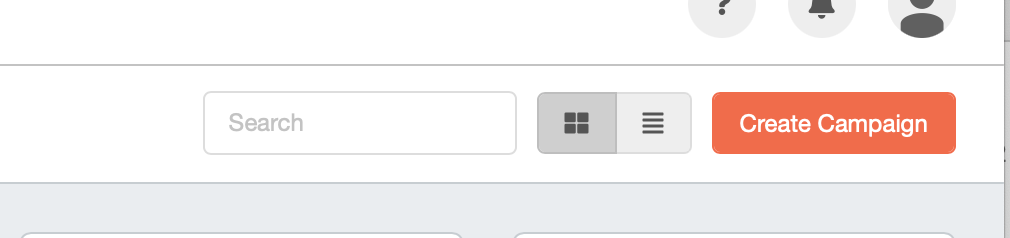
Fill in the clients details, leaving the Group empty for now.
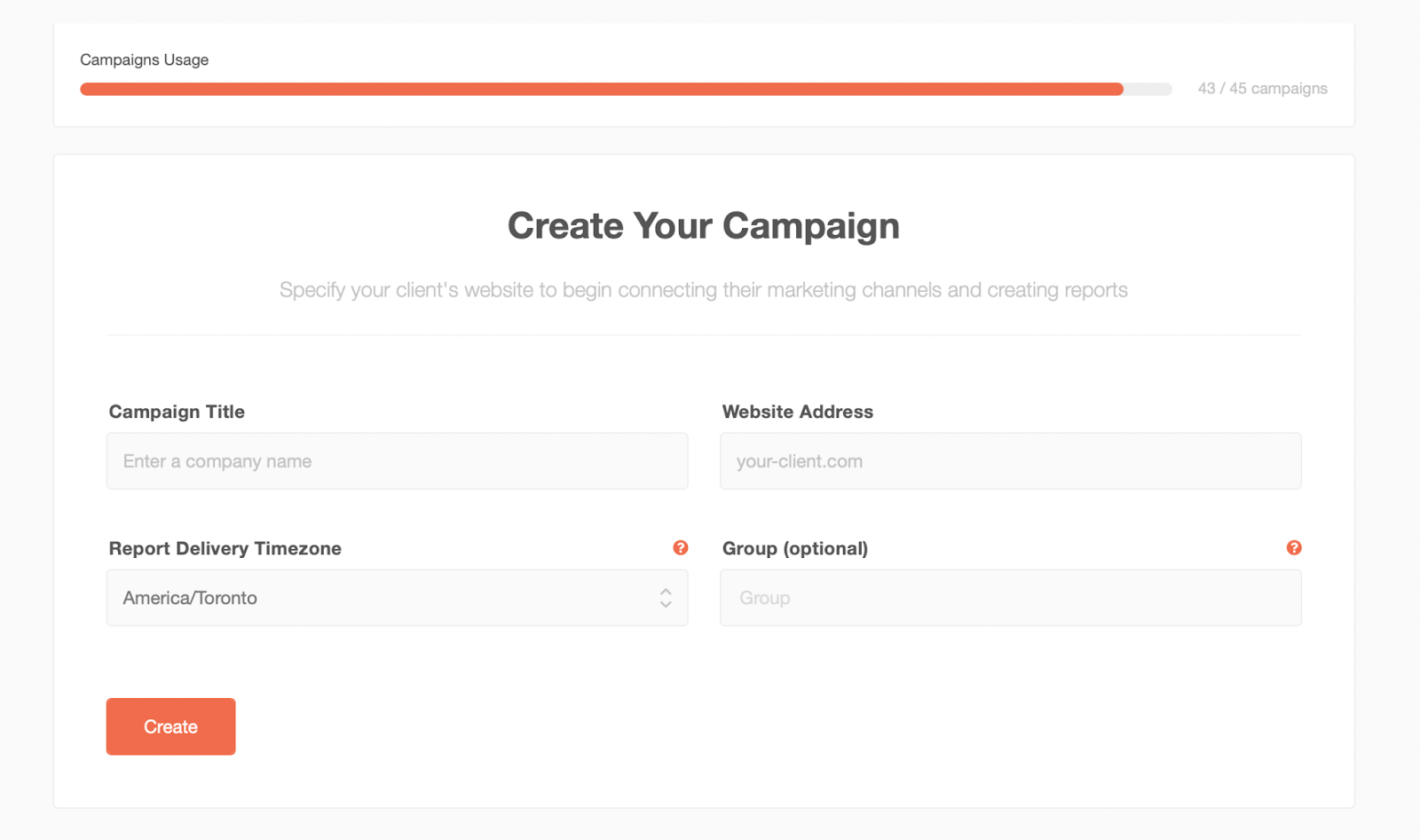
Click create and your campaign will be created and pop up on your screen.
From this Integration screen, you need to click on Google Analytics 4.
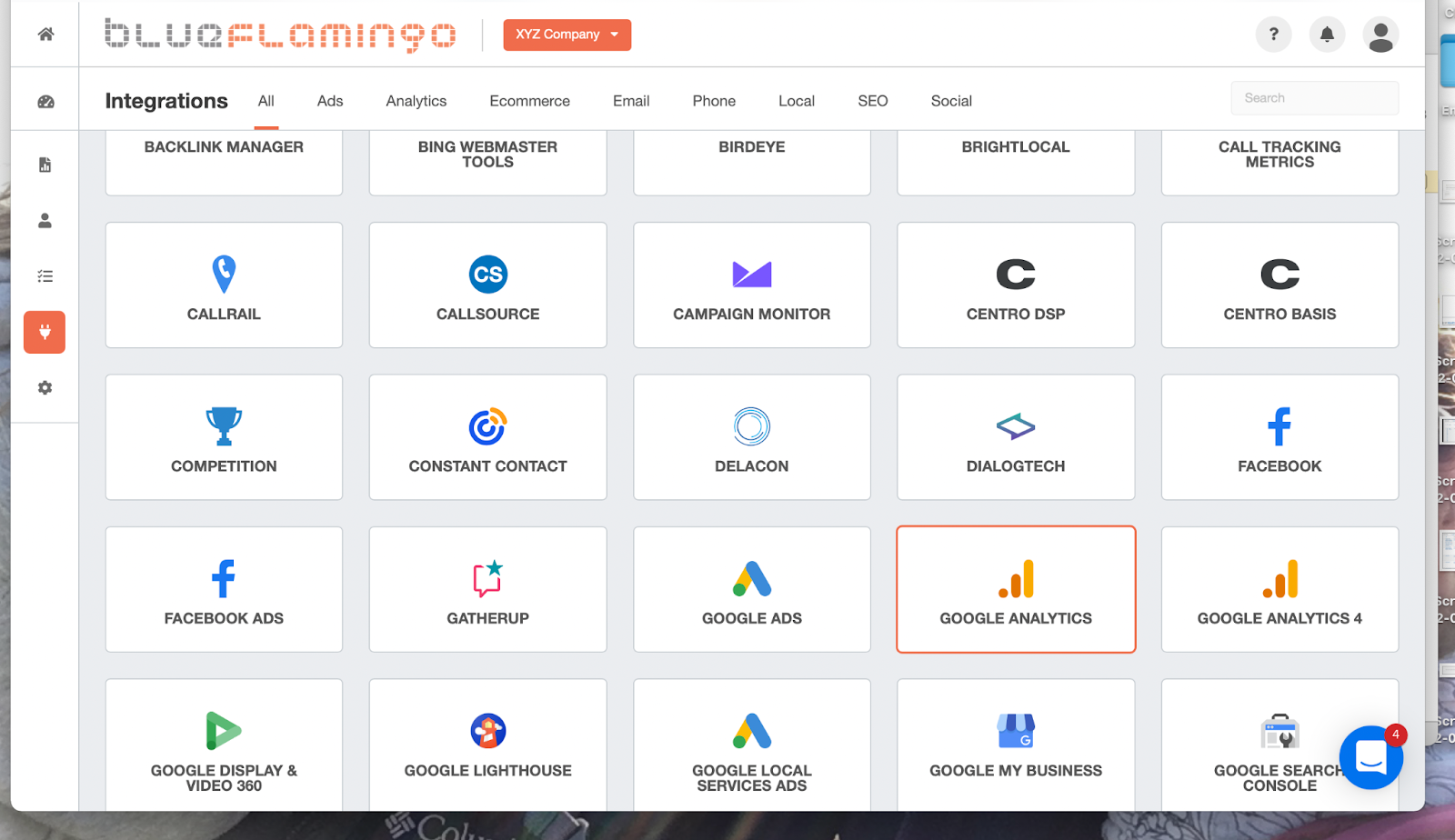
Create new account
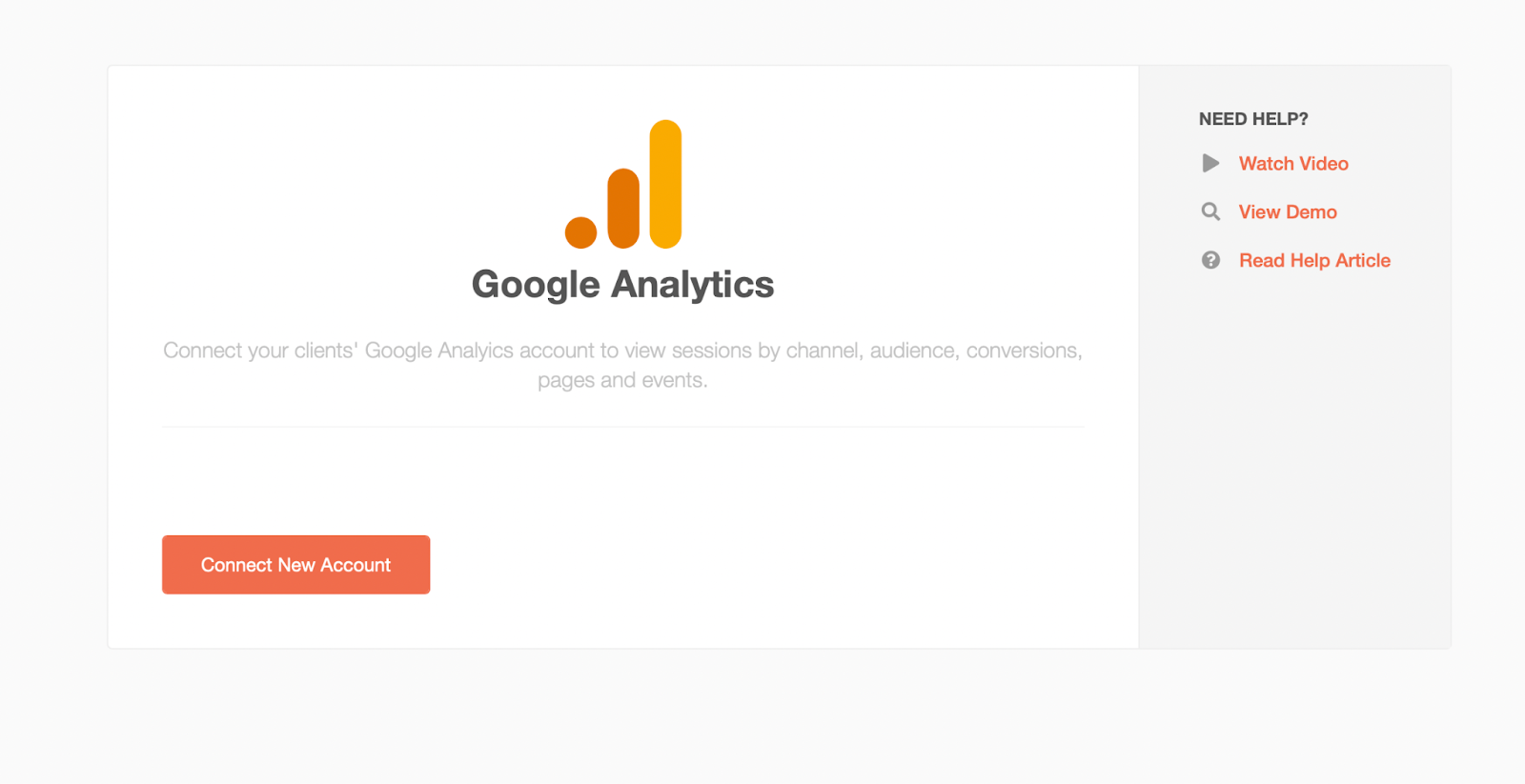
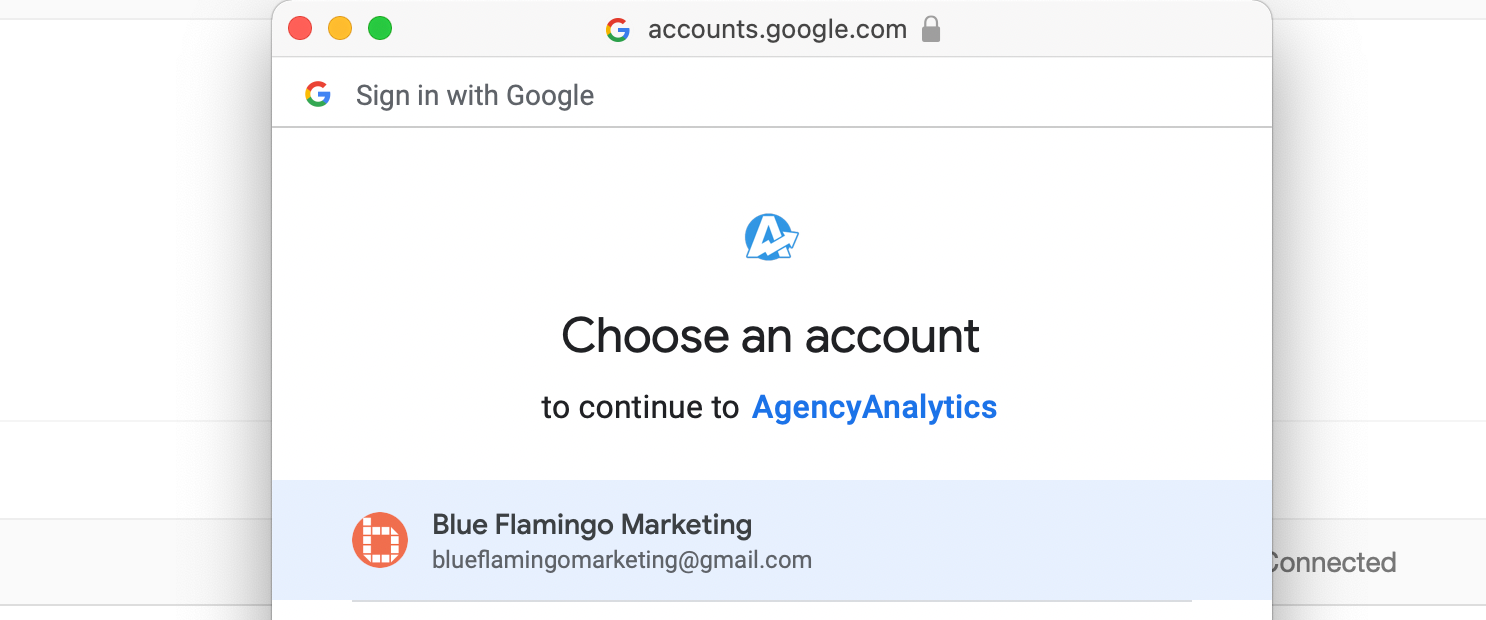
Choose Connect New Account and then sign into Blueflamingo Marketing google account.
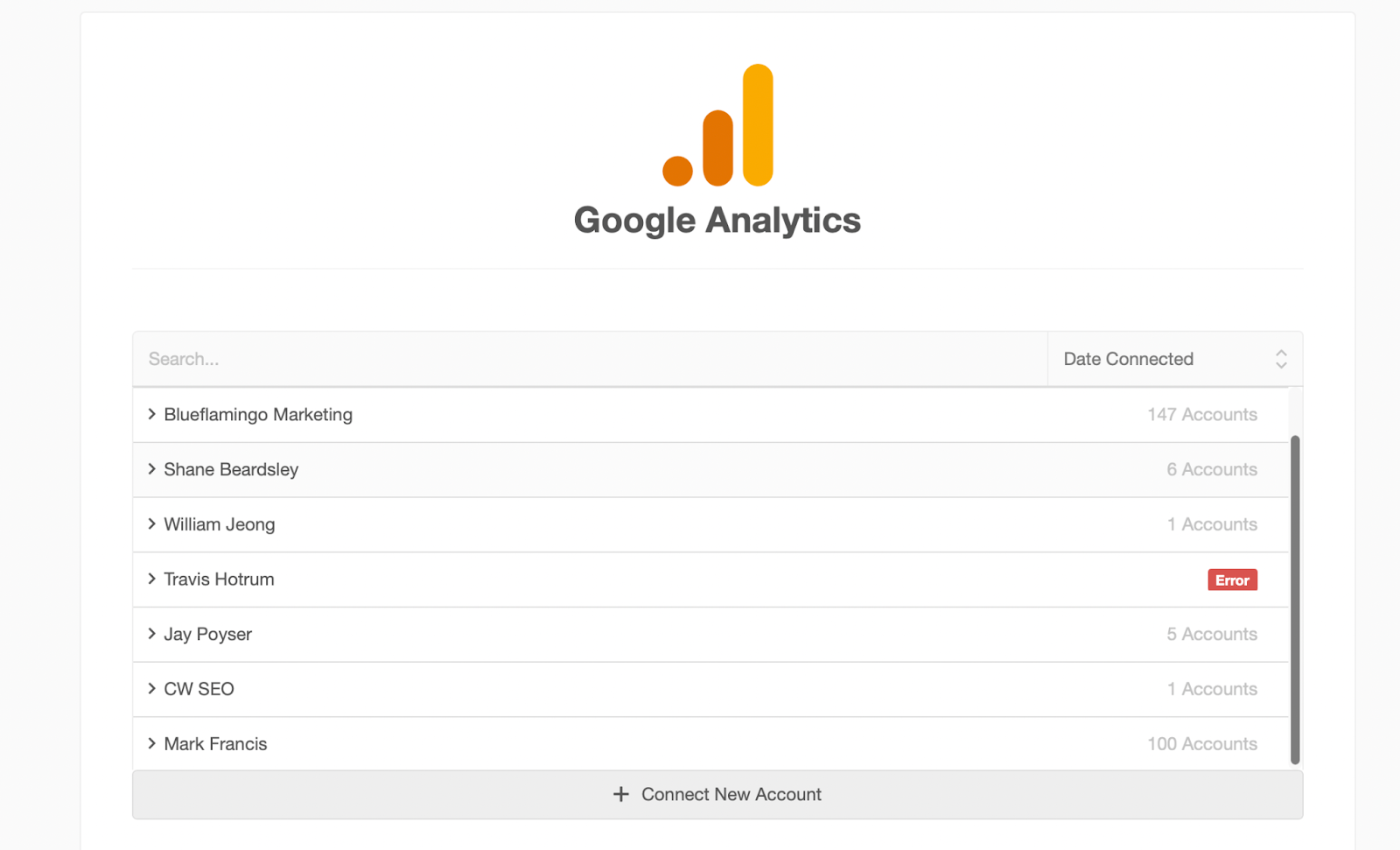
Once signed in, then choose the client from the Blue Marketing List. You will now be able to view the google analytics.
5. Workshop
5.1 Prepare the Powerpoint Presentation
Once everyone has accepted the Teams meeting, you will need to create the Powerpoint presentation. Using this template to create a Website Kickoff presentation - fill in the highlighted areas with the client specific information ie Client name, timelines and highlights of their google analytics. See template for examples.
5.2 Workshop with Client
Using the powerpoint presentation to guide the meeting, starting with introductions of both teams and then moving through slides, gathering as much information as possible.
5.3 Workshop follow up
After the presentation send a follow up email to the client using this template:
Hi [First name]

It was great meeting with you and your team and going through our information gathering workshop. We learned a lot about your company and your expectations. Please see attached for a copy of the presentation.

We are excited to start the next step of the process which will be to create the wireframes, which once approved will allow us to move into the design stage.

Now we just need a few more things from you at this stage. Please send over:
- Brand guidelines, logos, any images you would like used
- A list of websites you like/dislike
- Any content you would like us to use, if you have any at this time
- Anything else you may have thought about after the workshop, ie any specific issues you see with the current site, things you would like to see more/less of, etc
6. Next Steps
6.1 Set up a Weekly catch up meeting (Optional)
This step is optional depending on the size of the project. If needed, please check with Tim and/or Mark using this calendar and the client on the best day and time of the week. Once this is confirmed, send out a recurring weekly meeting for the duration of the project.
Was this article helpful?
That’s Great!
Thank you for your feedback
Sorry! We couldn't be helpful
Thank you for your feedback
Feedback sent
We appreciate your effort and will try to fix the article