Table of Contents
Objectives
What is this for? To take a new website live by updating Nameserver and DNS records
What is the ideal outcome? Website is functioning on client’s primary domain name and redirects are functioning
What you need to know beforehand? Access to domain name registrar
Why this is important? To ensure the site loads without errors
Where this is done? Cloudflare, WP Engine and Domain Registrar
When is this done? Once site has been approved for go-live
Who does it? Blue Flamingo Account Manager
1. Add domains to WP Engine
1.1 Add primary domain and set-up redirects
Navigate to Production > Domains and Select Add Domain within WP Engine
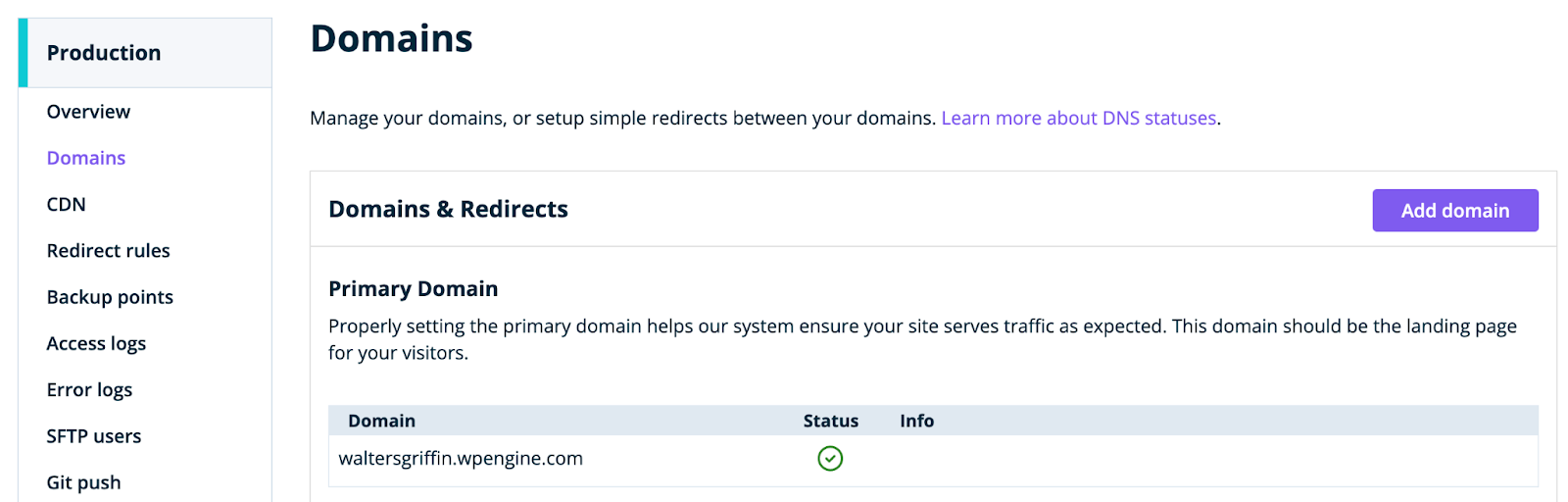
Add domain name and keep “I’ve purchased this domain”.
Uncheck “Order free Let's Encrypt SSL certificate”, and uncheck “set domain as primary” if this is not the primary domain name for the site. Click “I’ll point this later” and select “I will manually do this”.
Repeat process for any additional domains that will redirect to the primary domain.
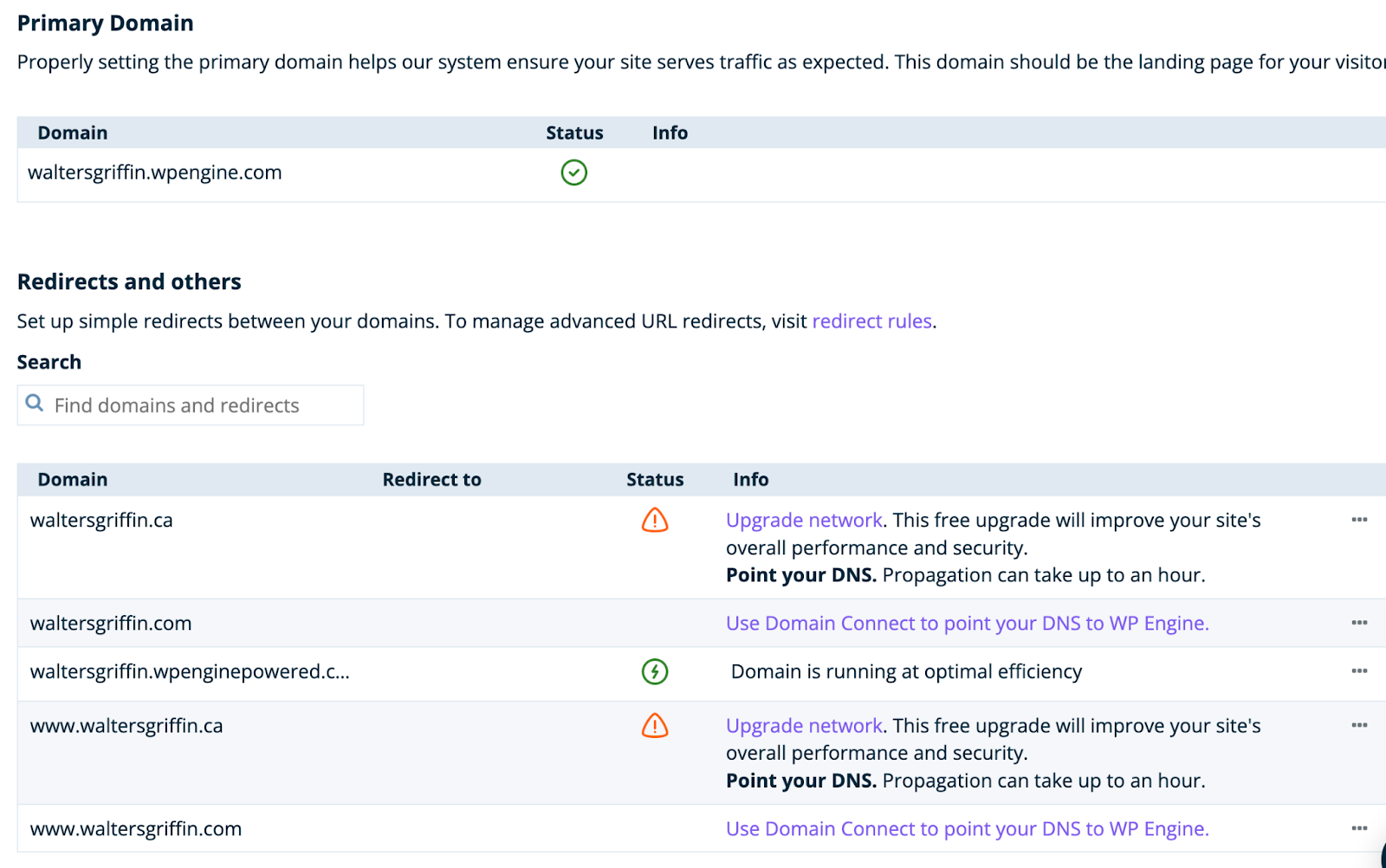
Ensure the primary domain name is listed under “Primary Domain” in WP Engine. If not, select the three dots next to the domain to set as Primary Domain.

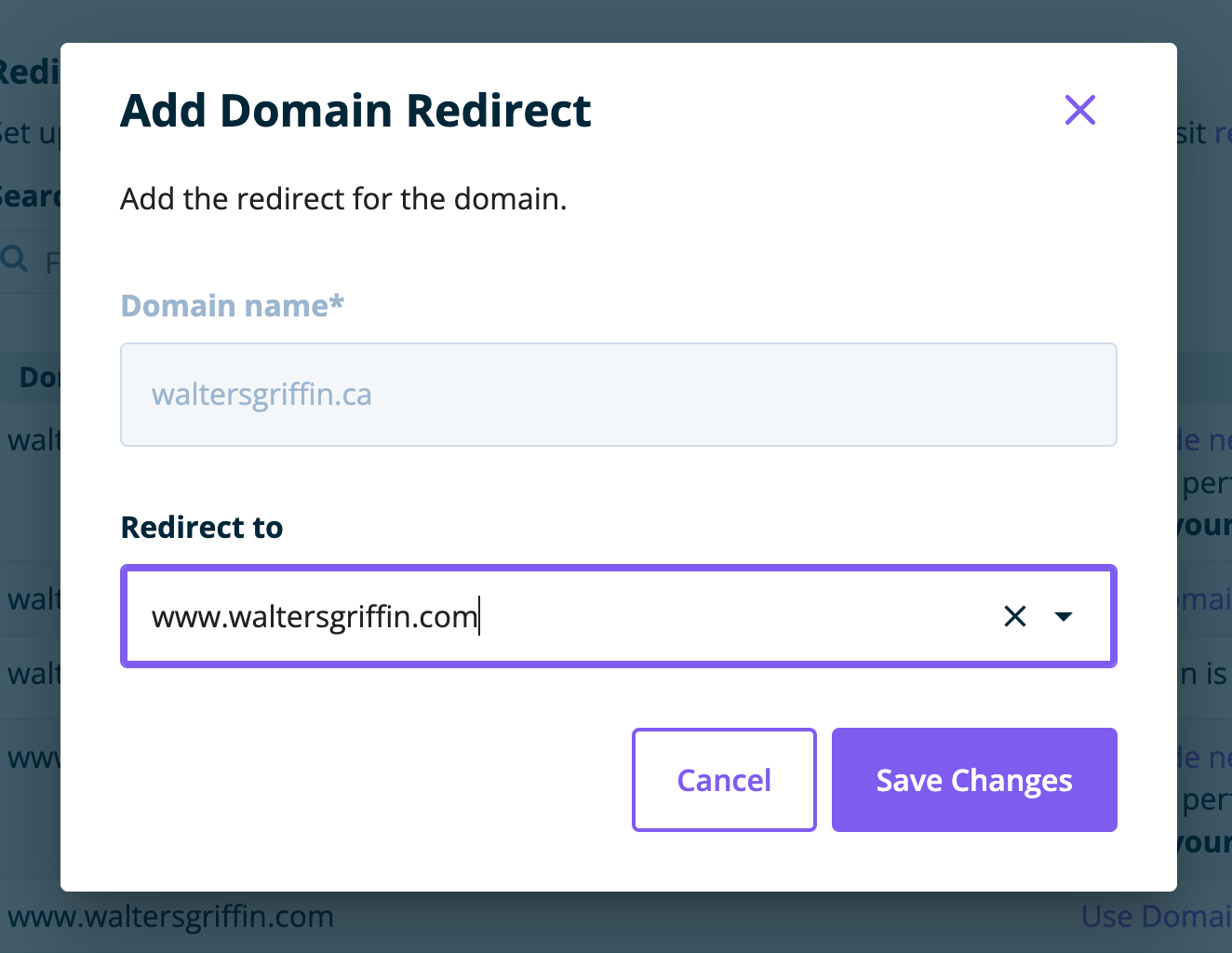
All other domains should be setup as redirects by selecting the three dots and selecting “Add redirect” and on the pop-up selecting “Redirect to” and selecting the primary domain.
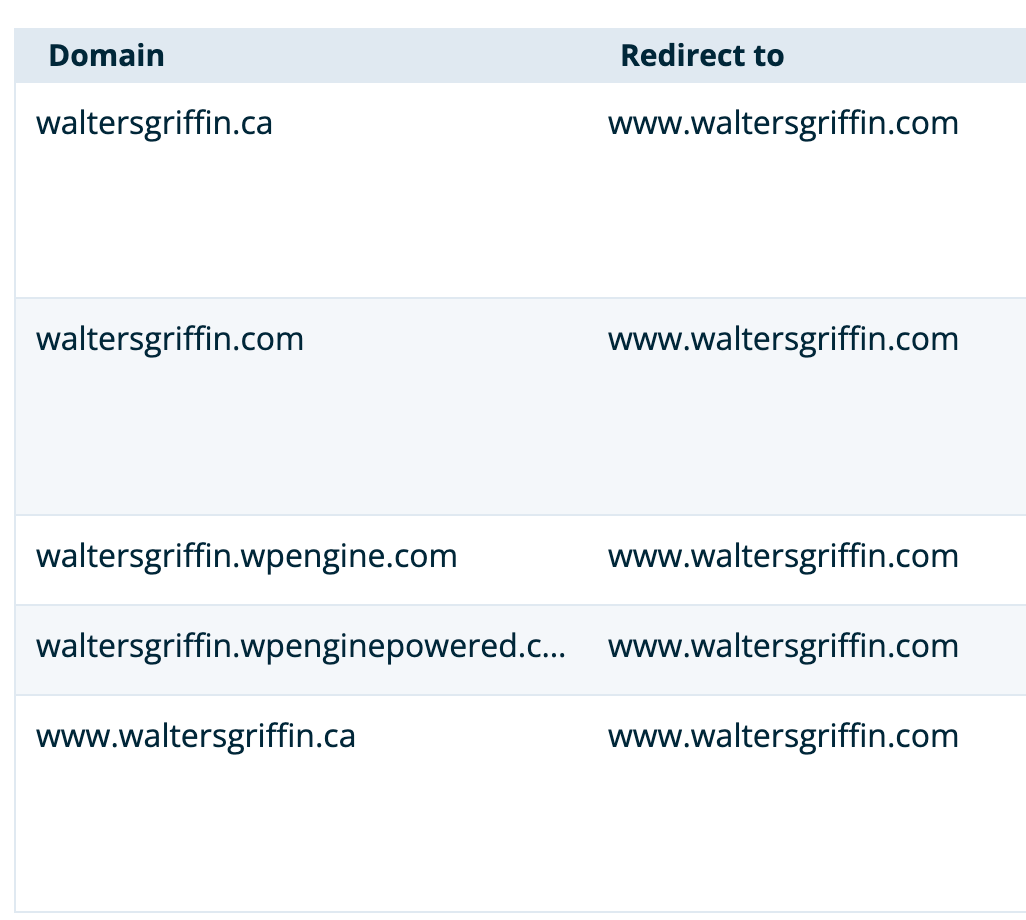
Once complete all domains under “Redirect and others” should have a value for “Redirect to”
1.2 Open WP Engine chat for a database find and replace
During development, the domain used to access a site will end with wpengine.com. To take the site live, all instances of instancename.wpengine.com need replacing with the new primary domain set above.
Open a ticket with WP Engine asking for a find and replace to be done from the existing wpengine address to the new primary domain set above.
Copy and past the Support PIN on the bottom left hand side of the page to expedite the chat process and select “I want to talk to Support”
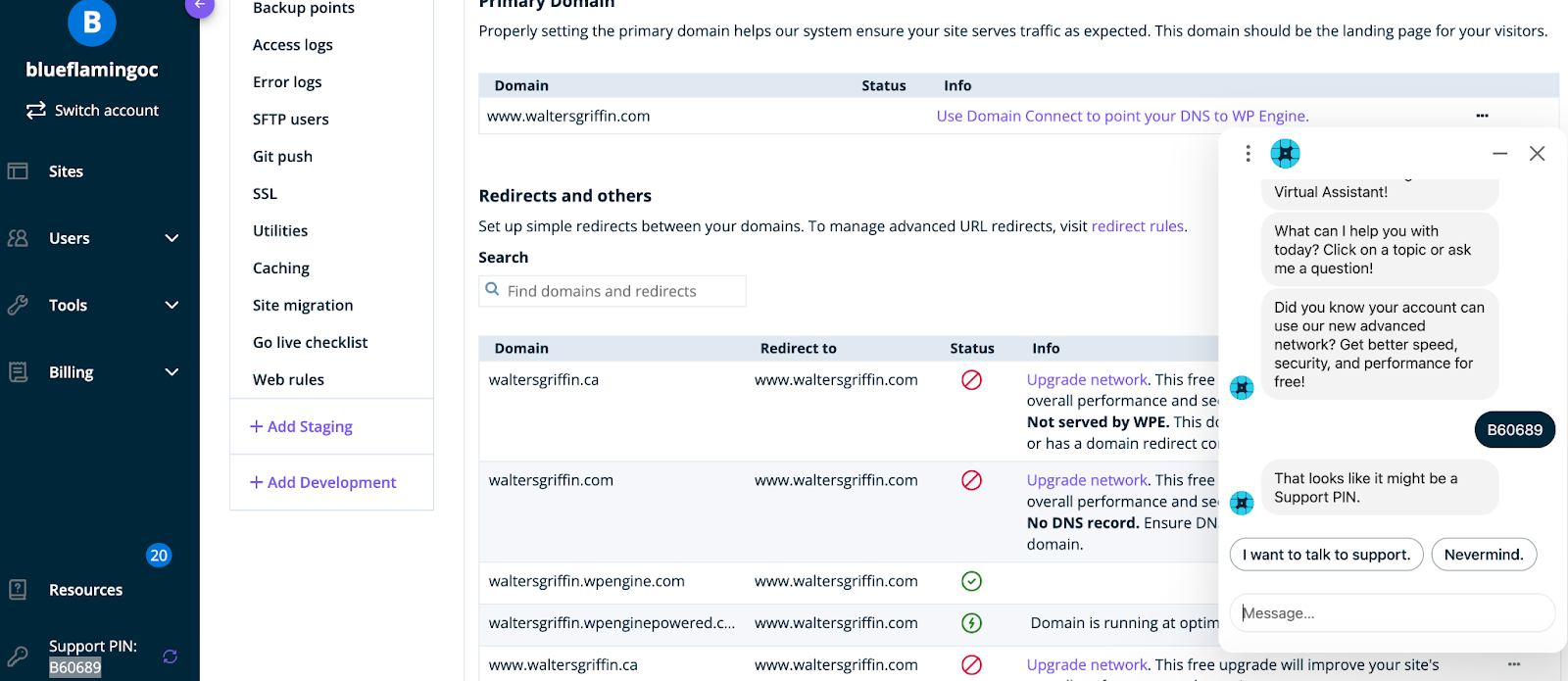
Once connected, ask the following:
Could you please do a find and replace on INSTANCENAME from instancename.wpengine.com to www.clientdomain.com
2. Configure DNS records and Nameservers
2.1 Setup new domain in Cloudflare
Once logged in to Cloudflare, select “Add a Site” - enter a domain name without the www.

Select the FREE plan and click Continue
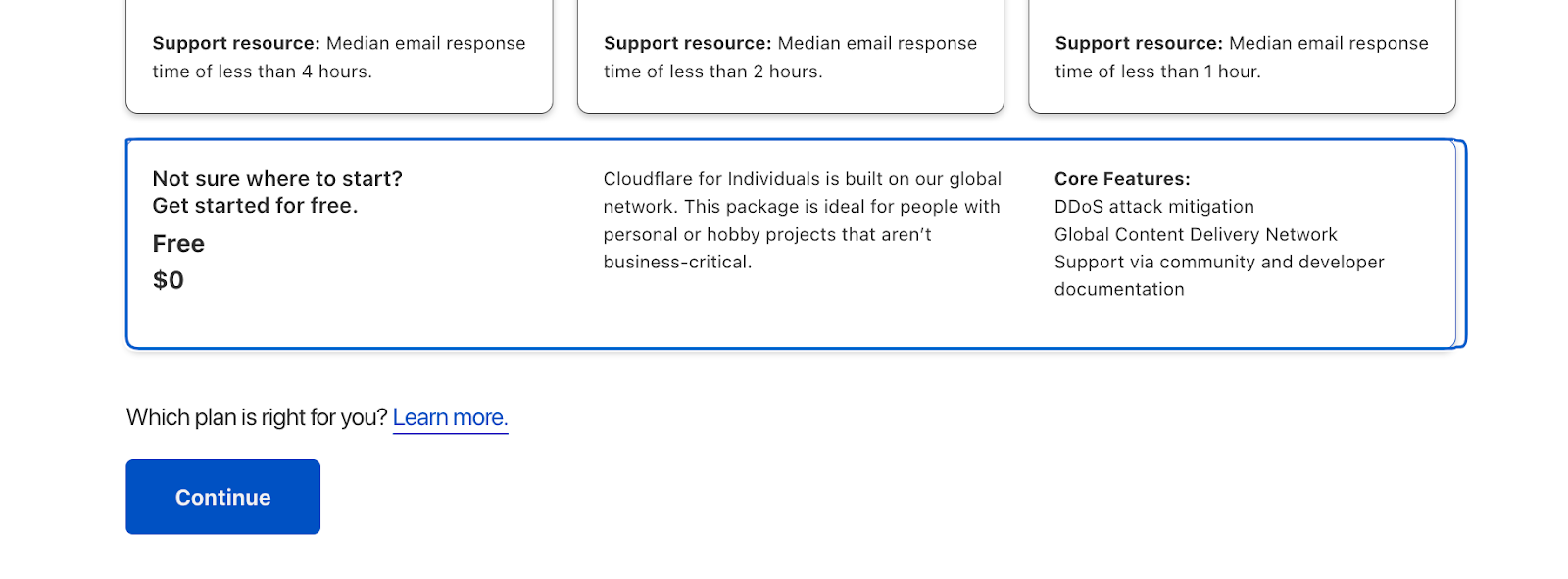
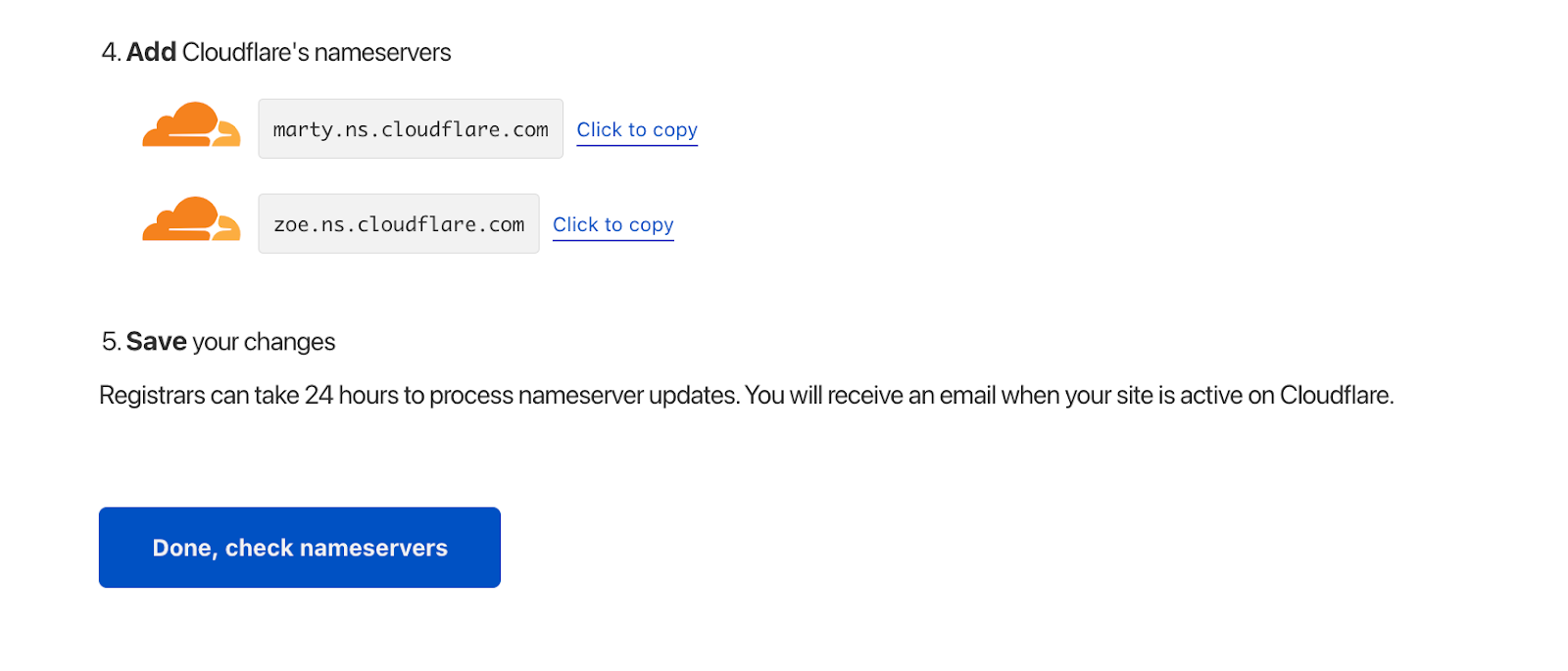
Keep scanned records as is and click Continue. You will be asked to change the Nameservers at the Domain Registrar to the following records:
| Cloudflare's nameservers |
| marty.ns.cloudflare.com |
| zoe.ns.cloudflare.com |
2.2 Update Nameservers with Domain Registrar
Once you have obtained the nameservers from above, log in to the domain registrar and change the nameservers. Instructions on how to change this are specific to each domain registrar. i.e. netfirms.ca, google domains, 123-reg etc.
2.3 Confirm change with Cloudflare
Once name servers have been updated, return to Cloudflare and click “Done, check nameservers”
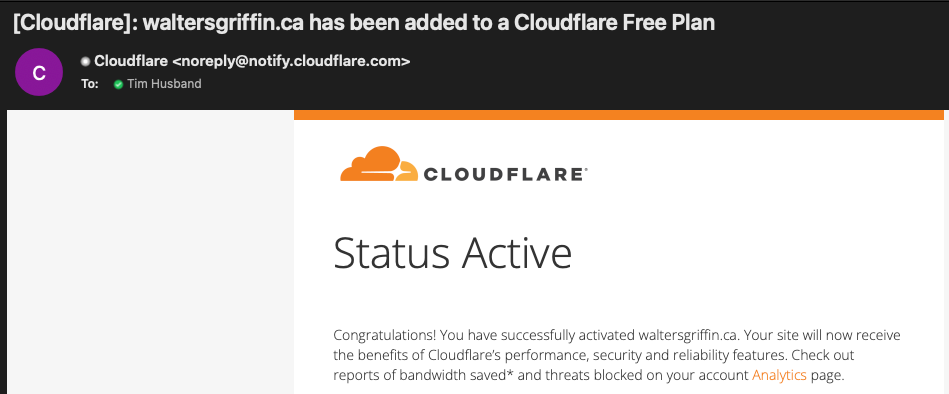
Once the nameservers have been updated, an email will be received confirming the nameserver change
2.4 Update DNS records in Cloudflare
Select DNS from left hand menu ensuring you are editing the correct domain
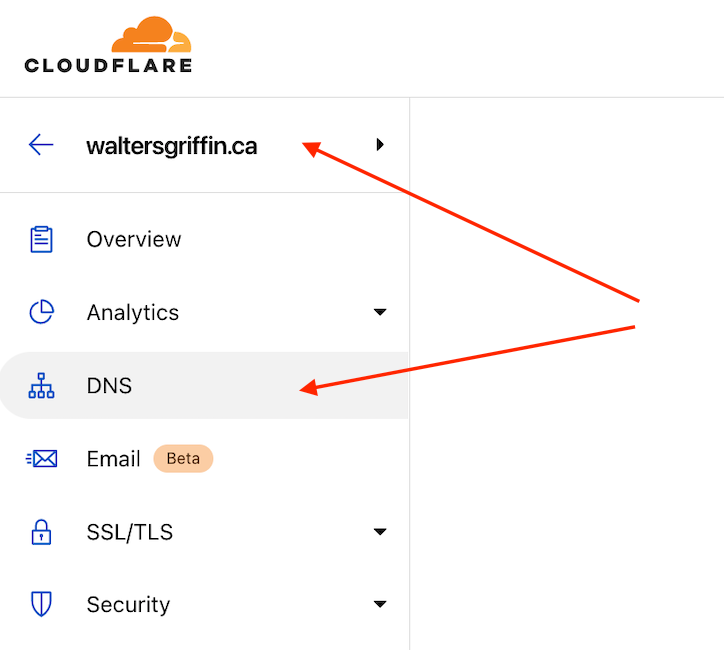
Delete the main A record for domainmame.com and the www record by selecting edit and Delete.
Select Add record and add in 2 new CNAME records as below copying the original instancename.wpengine.com from WP Engine. Keep Proxy status enabled.

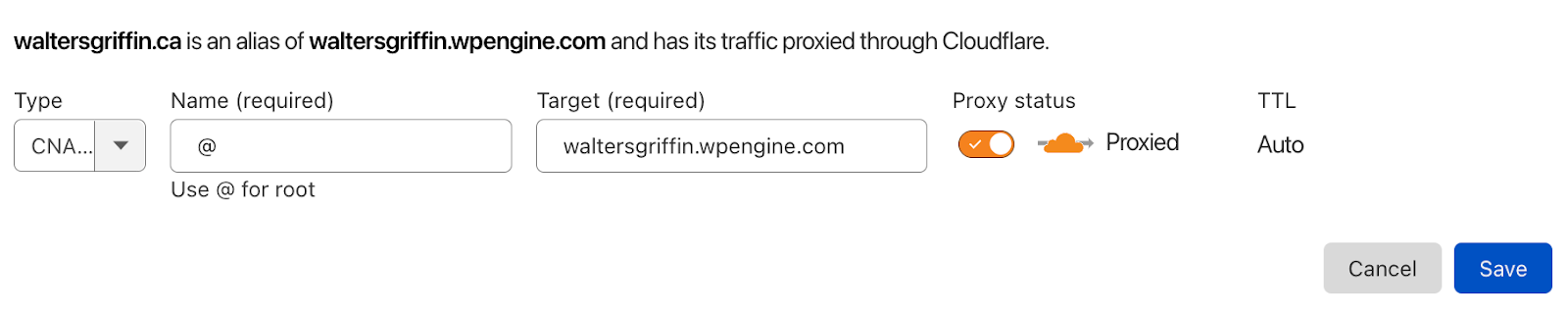
Repeat for all additional domains that were added previously to WP Engine.
3 Secure the site
3.1 Add SSL Certificates to site
Navigate back to WP Engine and select SSL under the production instance.
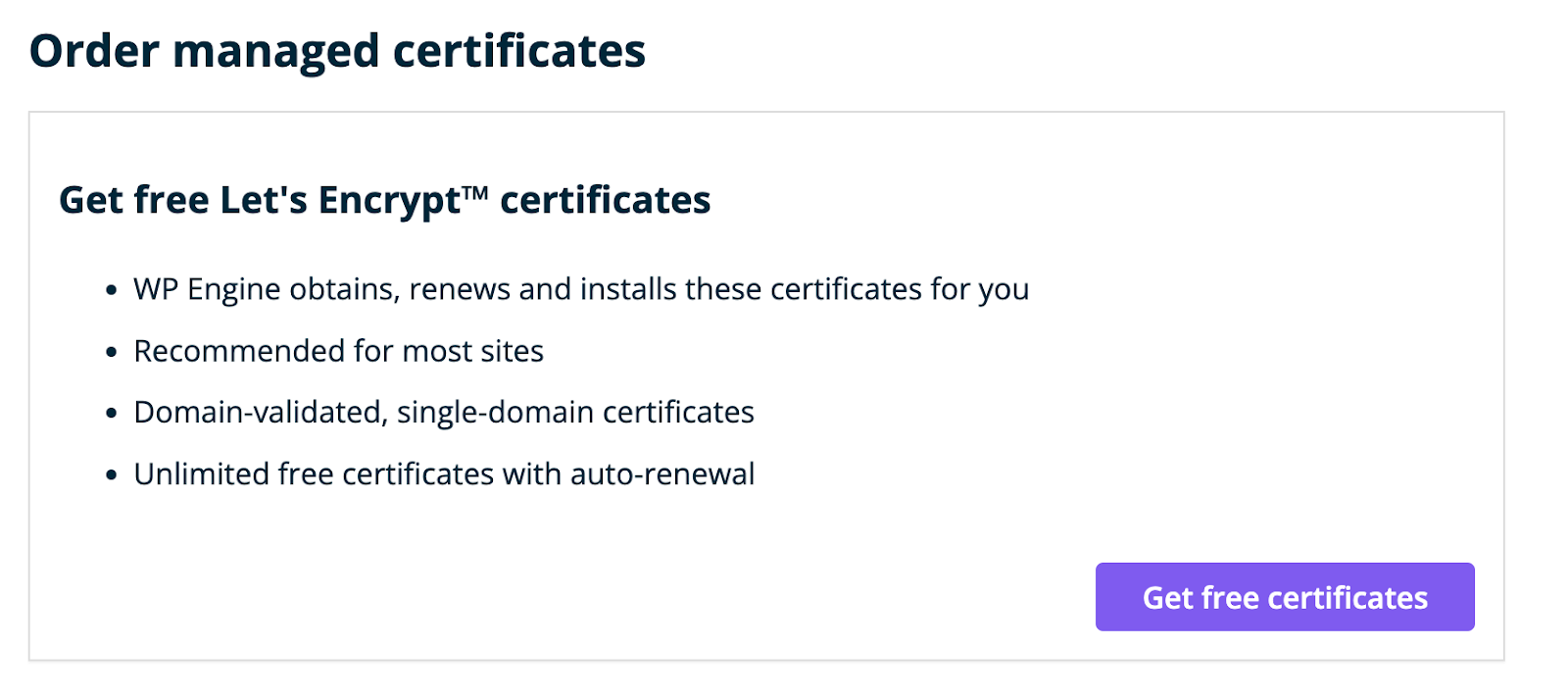
Select Let’s Encrypt and “Get free certificates”
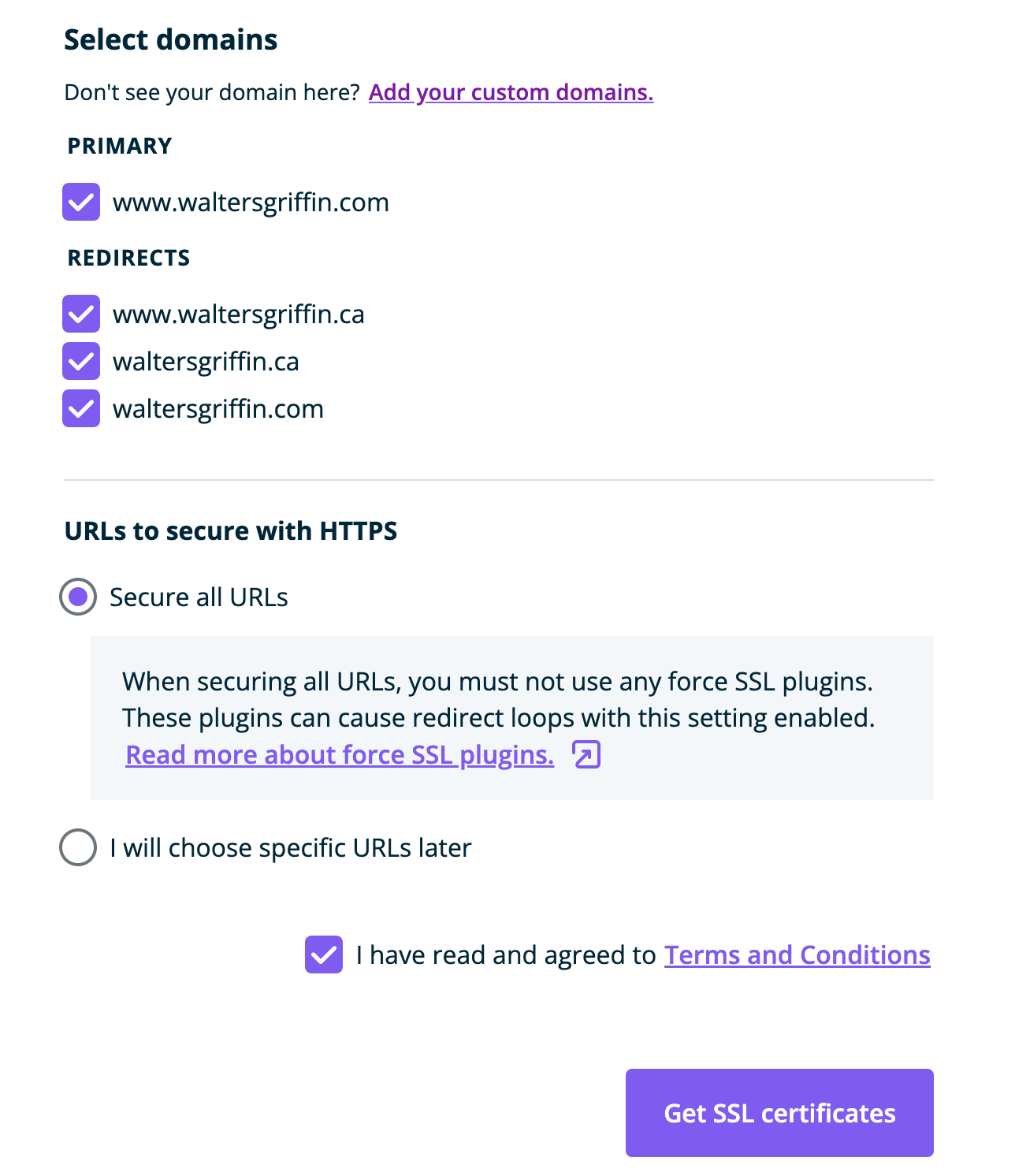
Select the primary domain and all redirects and keep “Secure all URLs” checked.
Check the terms and conditions and click “Get SSL Certificates”
Once requested, you will see the pending certificates.
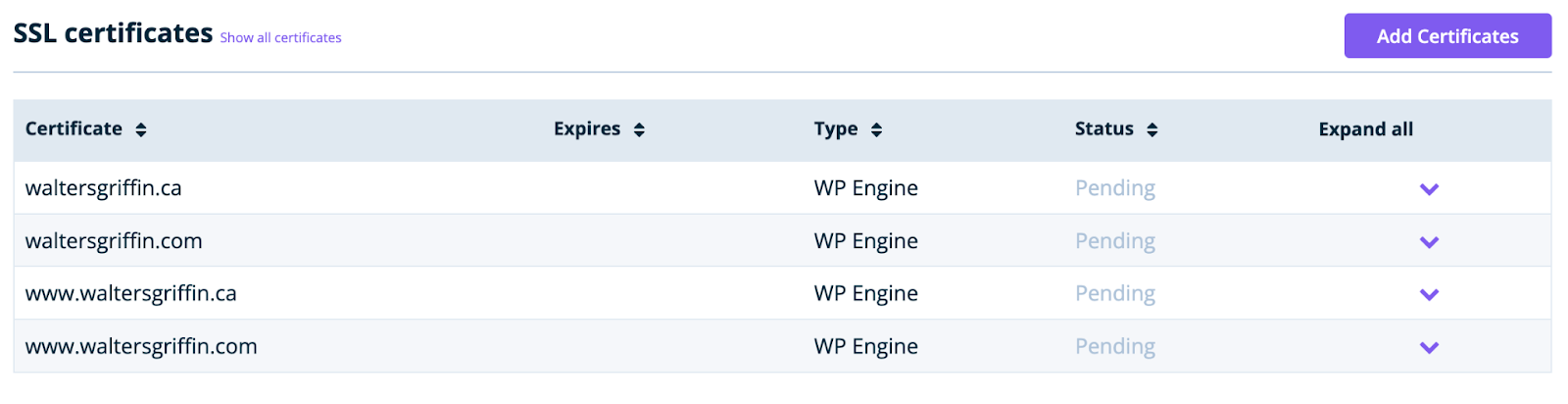
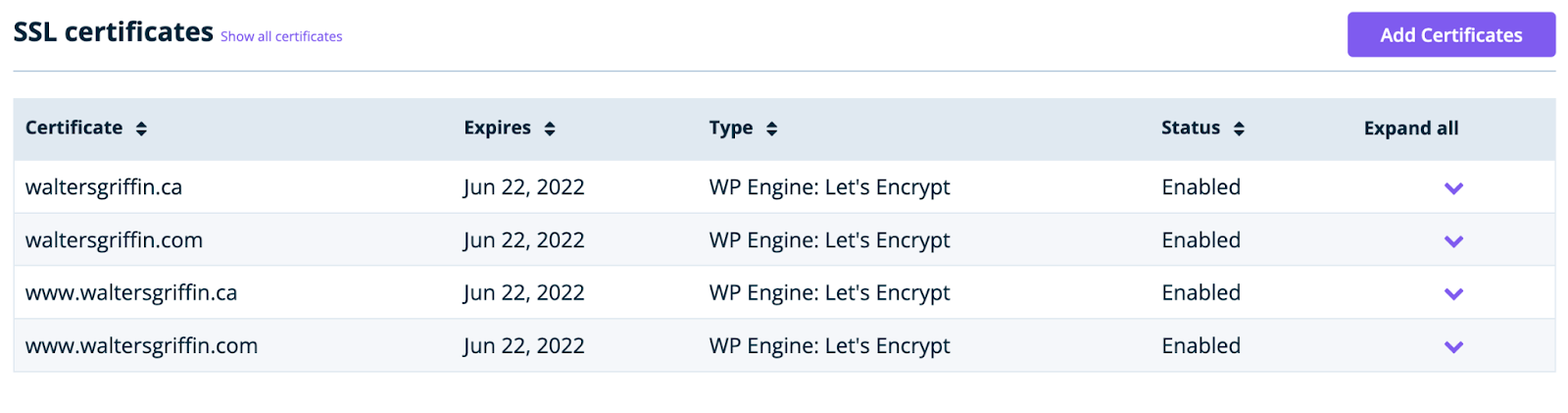
Wait up to 5 minutes, refresh page and all domains should be updated to a status of “Enabled”.
If “Pending” still shows, check the DNS records for the respective domains in Cloudflare to ensure they are pointing to WP Engine. If a record needs correcting, update the DNS entry in Cloudflare and once complete, open a support chat with WP Engine to ask for the certificate request to be canceled and reprocessed.
Once complete, all certificates should show as Enabled
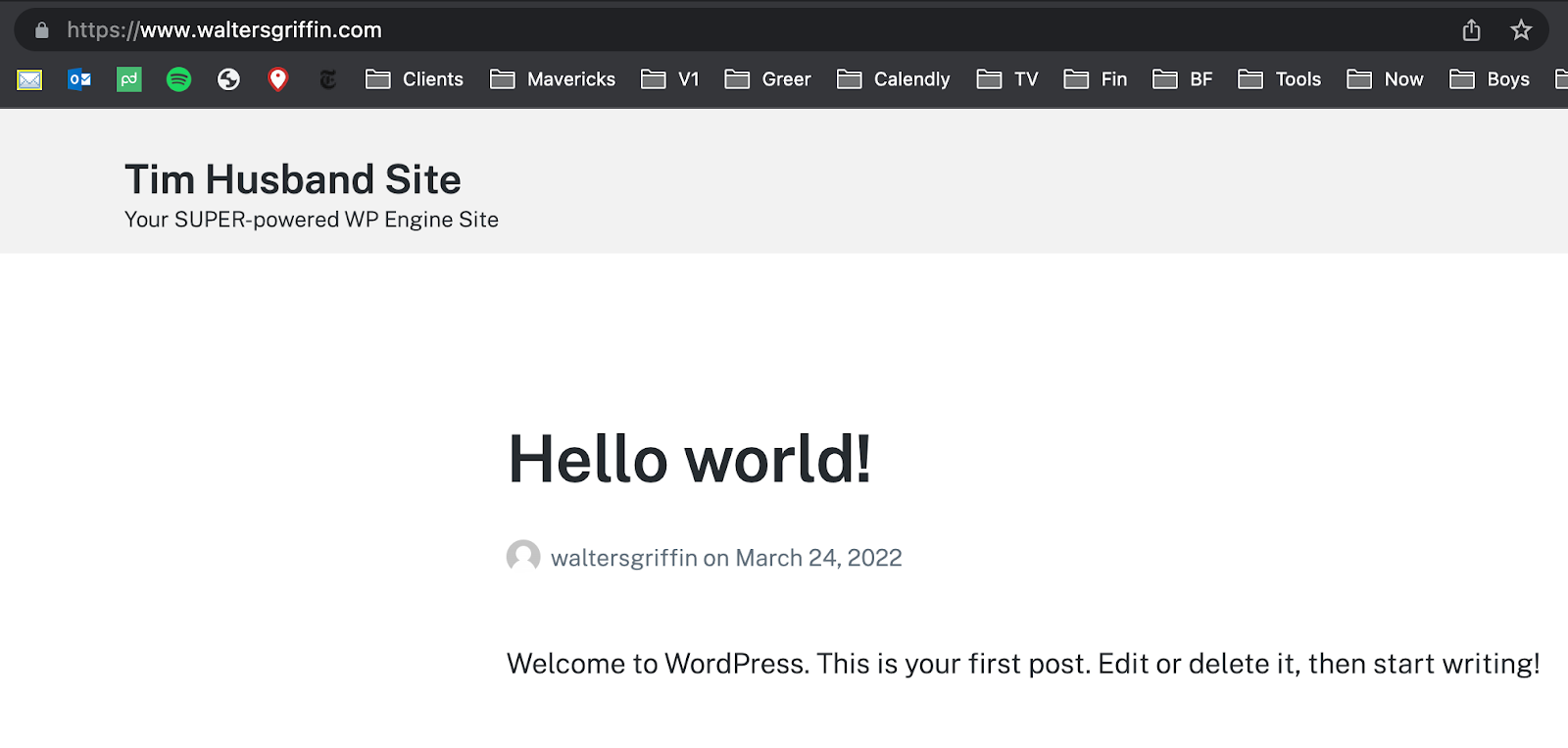
Finally, check the site is resolving on the respective domain and that there are no SSL errors. In the browser address bar you should see https:// with no warnings.
Was this article helpful?
That’s Great!
Thank you for your feedback
Sorry! We couldn't be helpful
Thank you for your feedback
Feedback sent
We appreciate your effort and will try to fix the article